SafeGuest + Track: Smarter Risk Management for Growing Vacation Rental Businesses
10 November 2026
More Control Over Risk. More Confidence to Grow.
As vacation rental portfolios expand, managing guest risk across multiple properties and booking channels becomes increasingly complex. Operators need reliable processes to identify suspicious reservations, verify guest identities, and protect their properties without adding unnecessary work for their teams.
The partnership between Track and SafeGuest brings guest protection capabilities into the property management workflow. Track users can access automated guest verification, AI-powered risk analysis, deposit options, and damage protection to help assess reservations and identify potential concerns before check-in.
For professional operators managing growing portfolios, these tools provide another way to strengthen existing processes while keeping day-to-day operations organized.
About Track
Track is an enterprise class property management and operations platform designed for high-growth short-term rental businesses. Its connected ecosystem brings property management, ledger-based trust accounting, channel distribution, direct bookings, and guest relationship management together in one place.
By consolidating these functions, Track helps operators reduce fragmented workflows, maintain accurate operational data, and improve financial transparency for property owners. This connected approach gives growing businesses a stronger foundation for managing complex operations, maintaining owner trust, and scaling their portfolios.
Through its partnership with SafeGuest, Track extends its operational capabilities to include additional guest screening and property protection tools. The integration gives operators another way to assess reservation risks, support their screening processes, and protect their properties as their businesses continue to grow.
Free for Hosts
Connect Your Track Account to SafeGuest
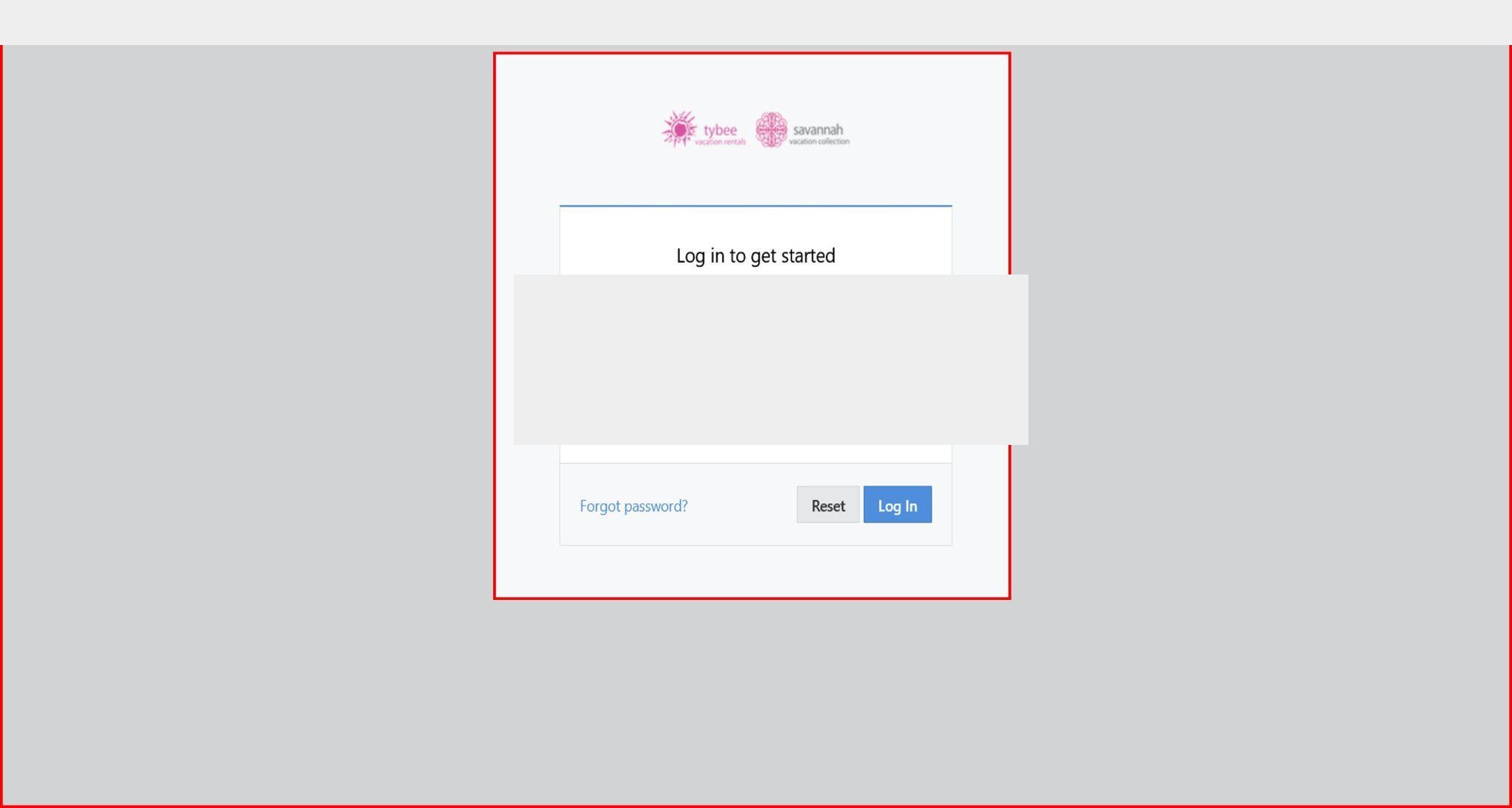
Step 1: Log in to Track
- Log into your Track account.
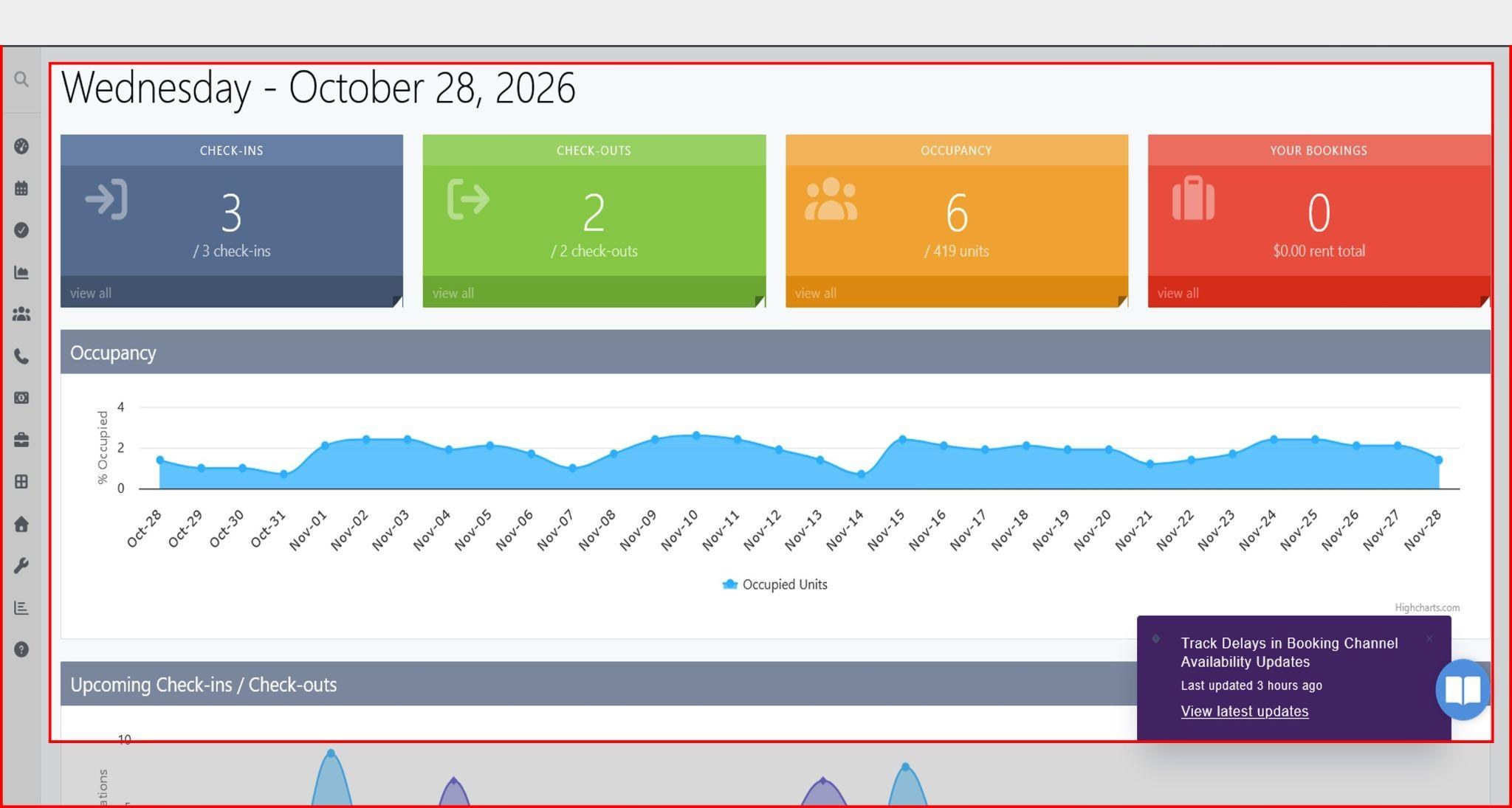
- Once you are logged in, you will land on the Overview page.
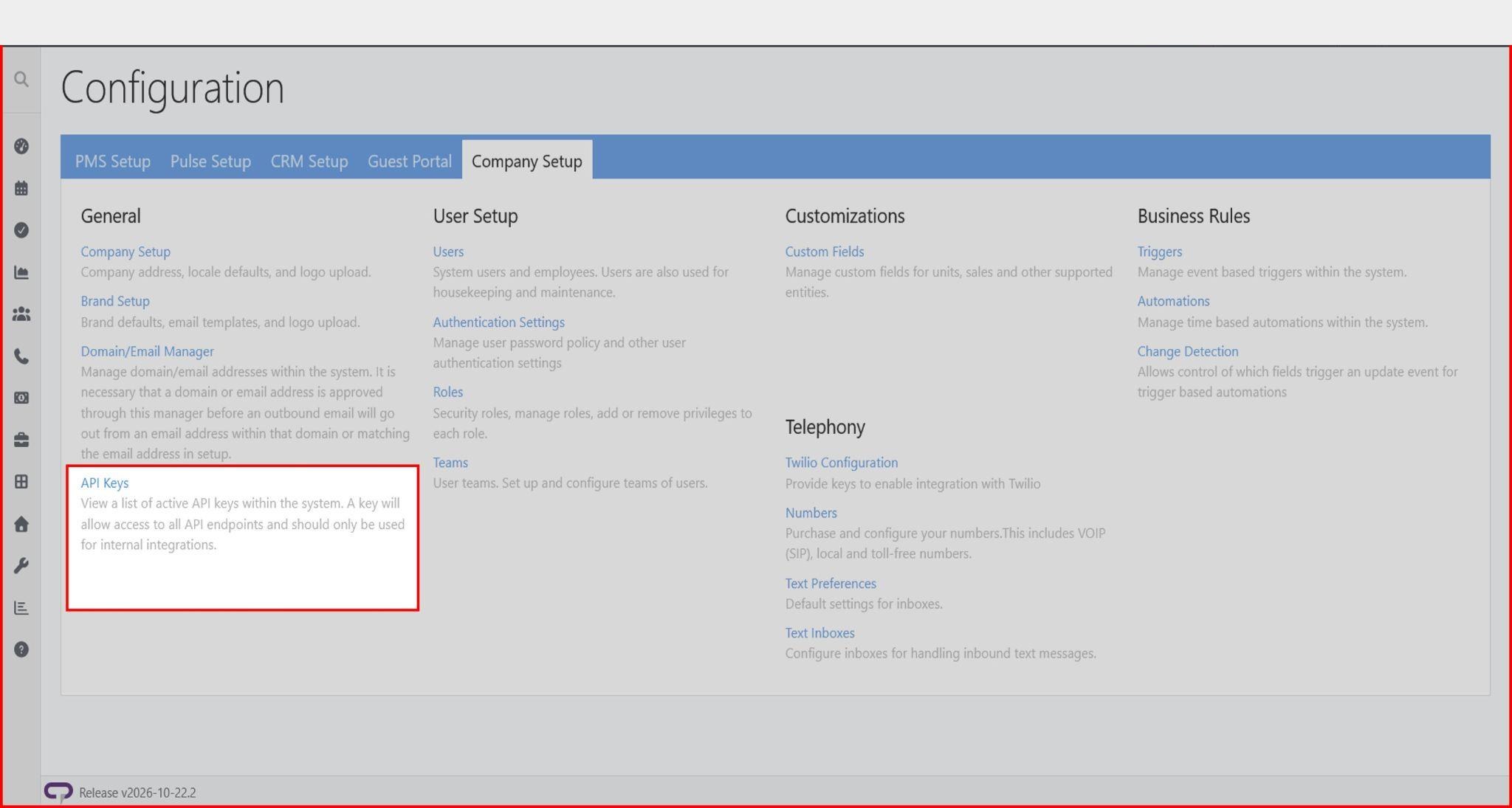
Step 2: Navigate to the Settings
- Click on Settings from the top navigation.
- Next, click Company Setup from the header.
- Click API Keys.
Step 3: Create a New API Key
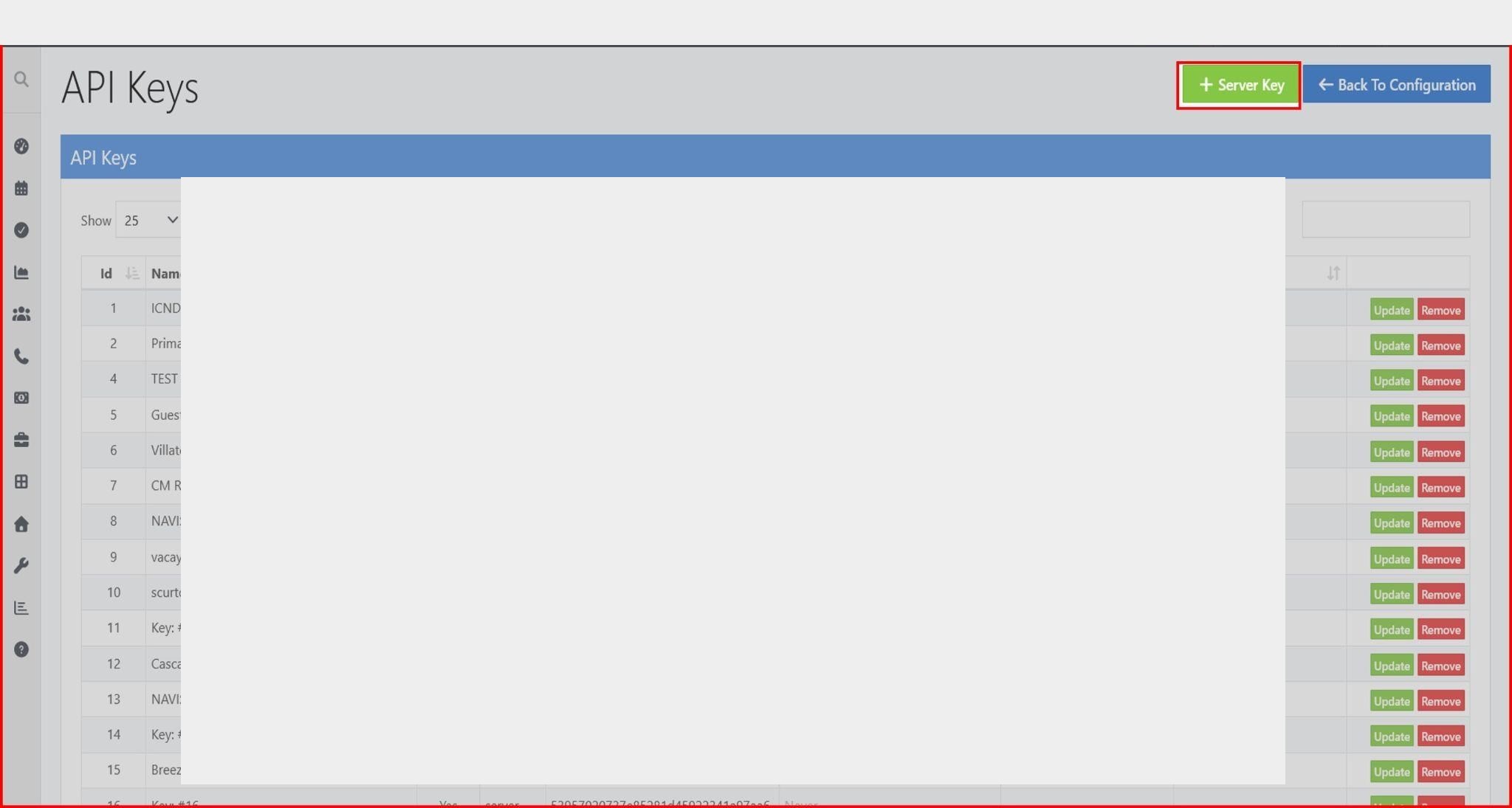
- Click the +Server key button.
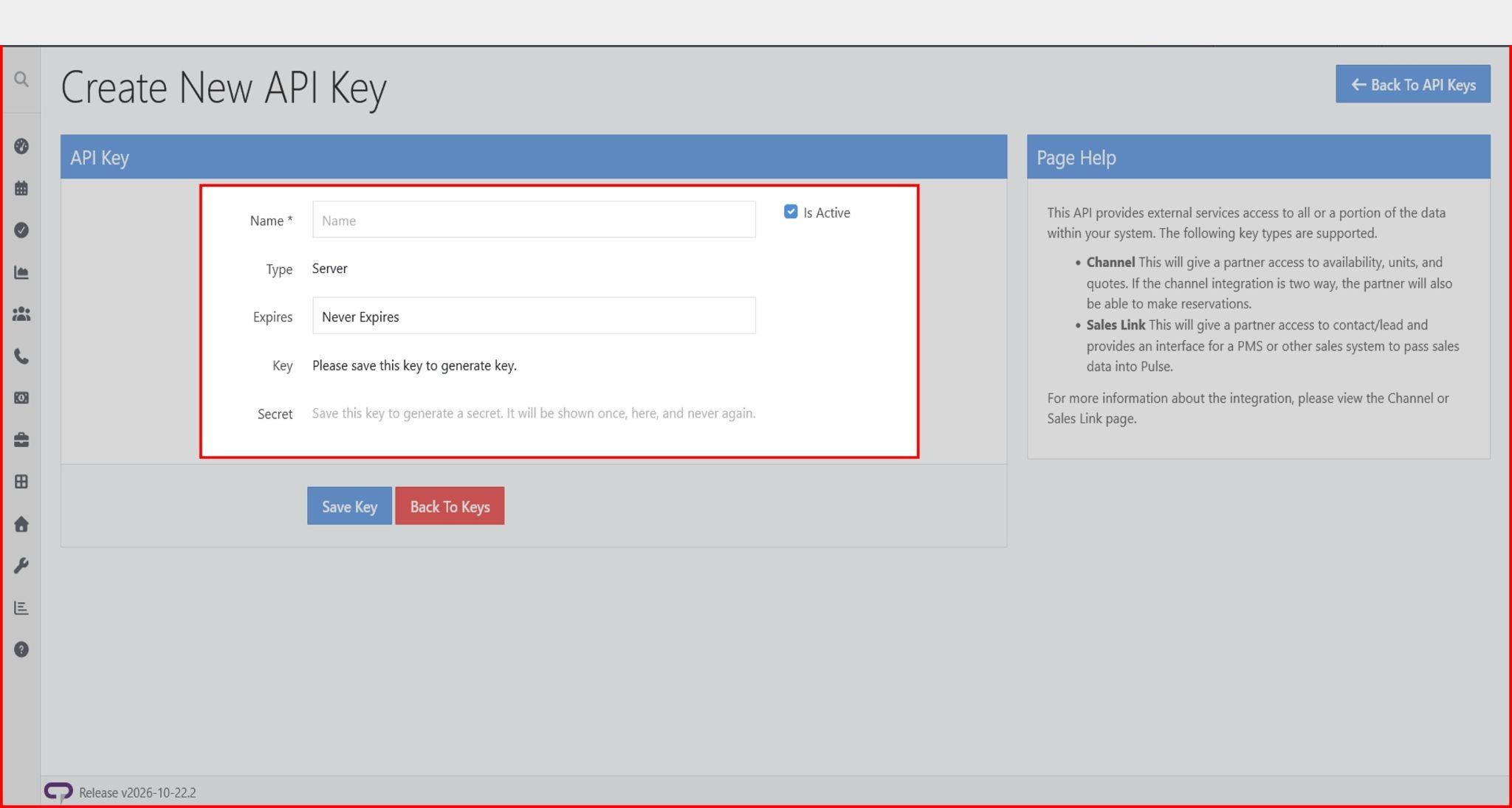
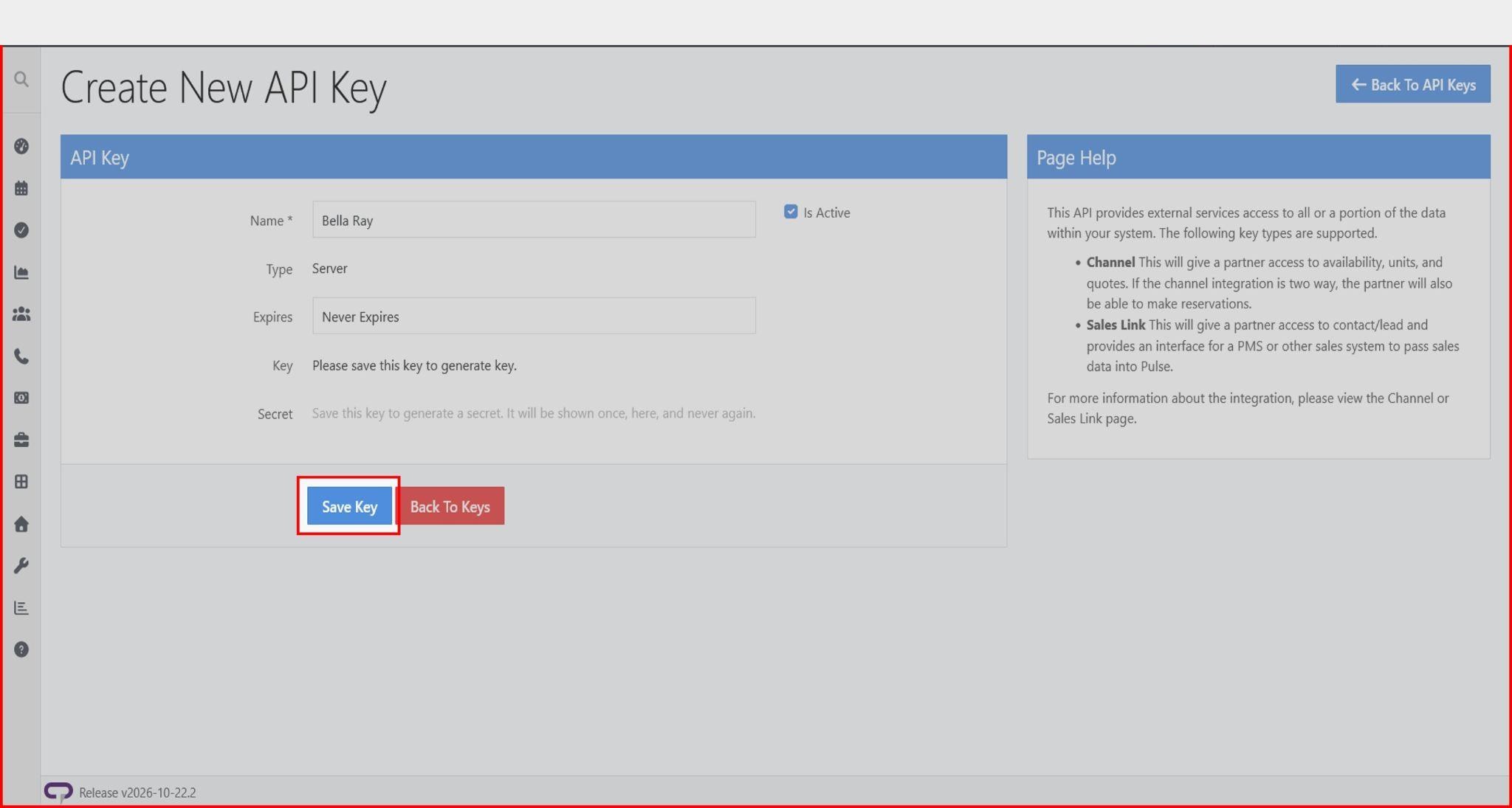
- Give the key a name and click the Save Key button.
Step 4: Copy Your API Credentials
- Copy the generated Key and Secret token.
- Additionally, copy the highlighted base URL from your browser's address bar.
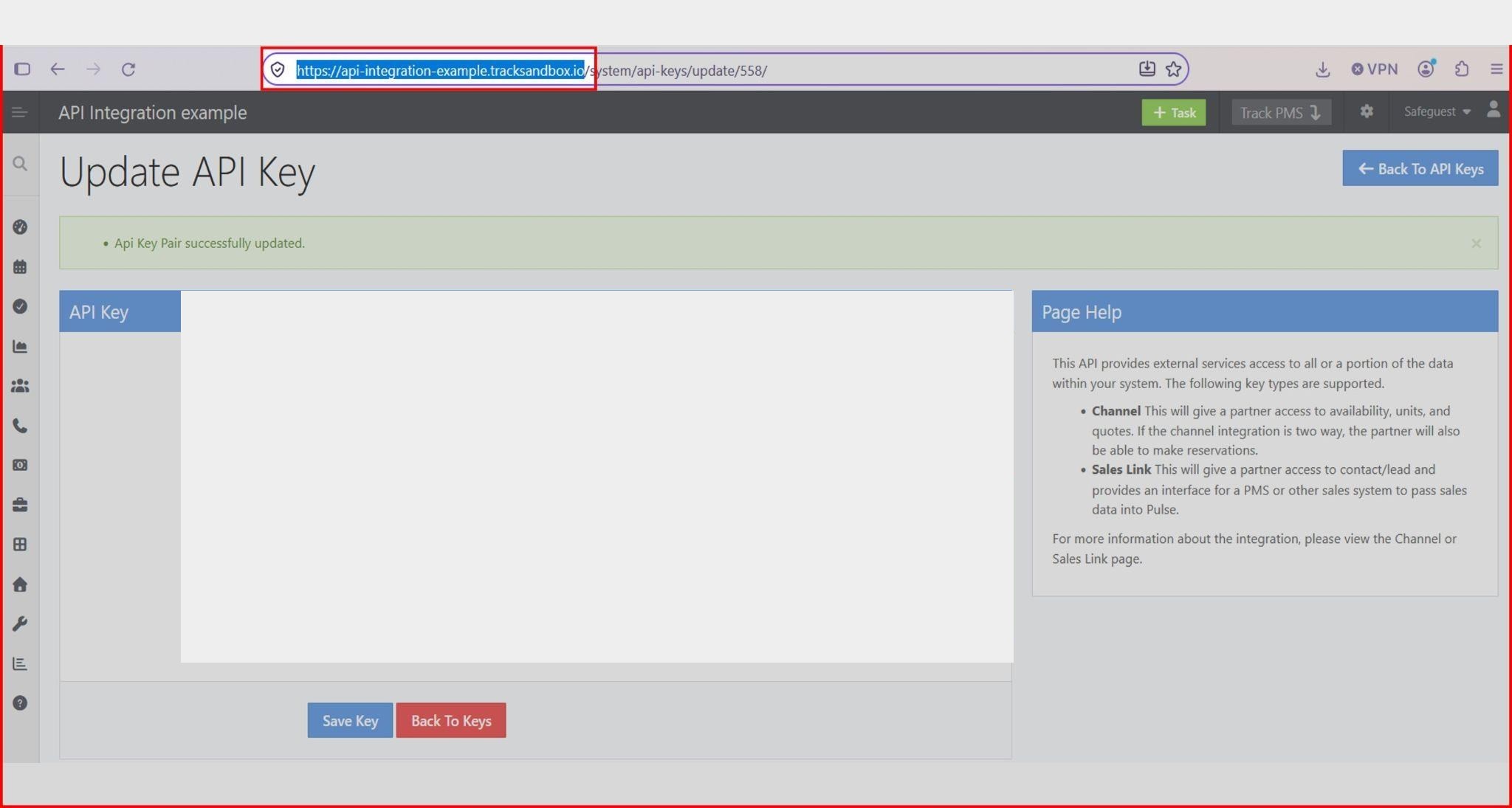
Step 5: Create your SafeGuest Account
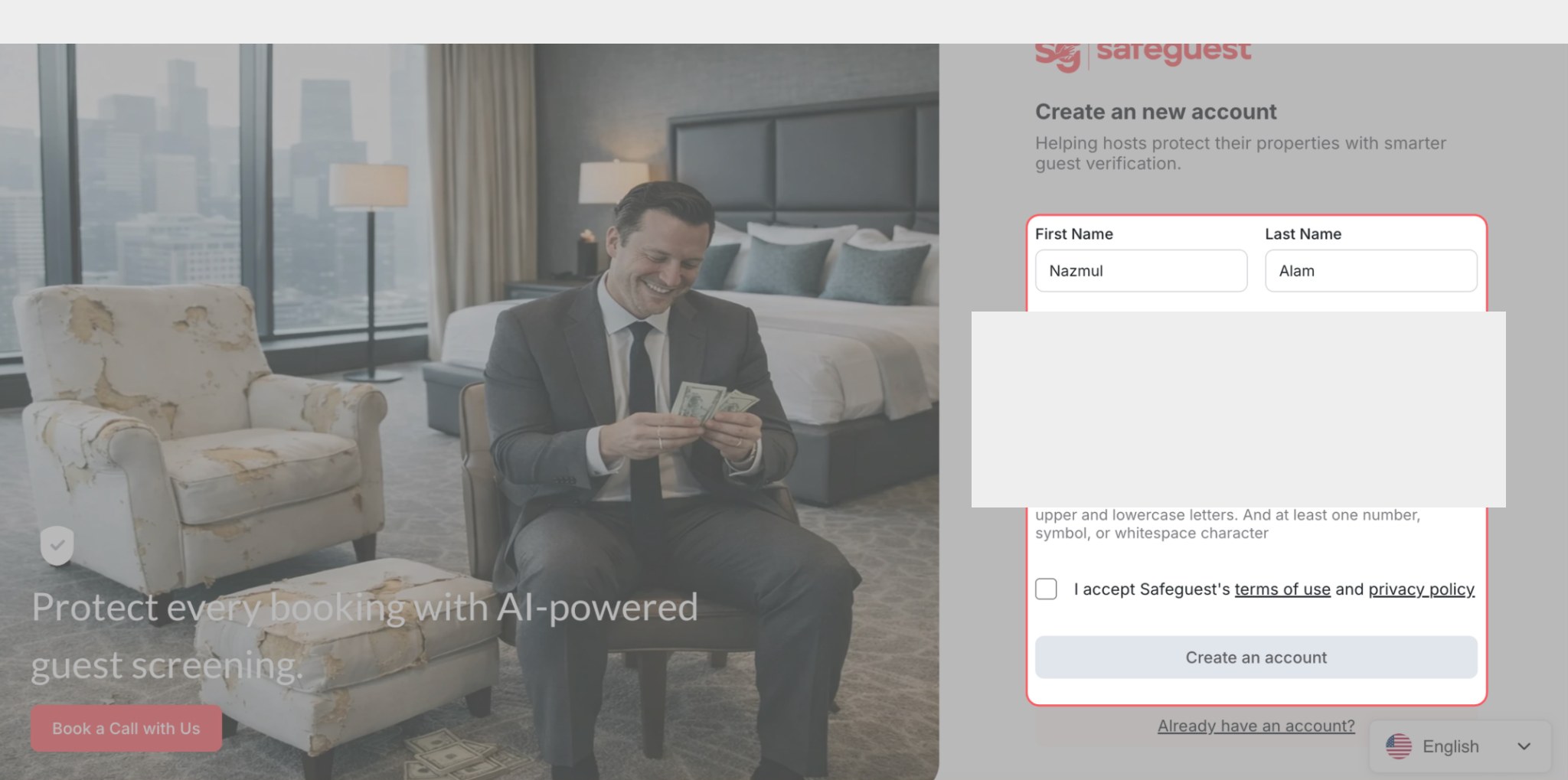
- Navigate to app.safeguest.ai.
- Enter your details.
- Accept the terms and conditions.
- Click the Create an account button.
Verify Your Email Address
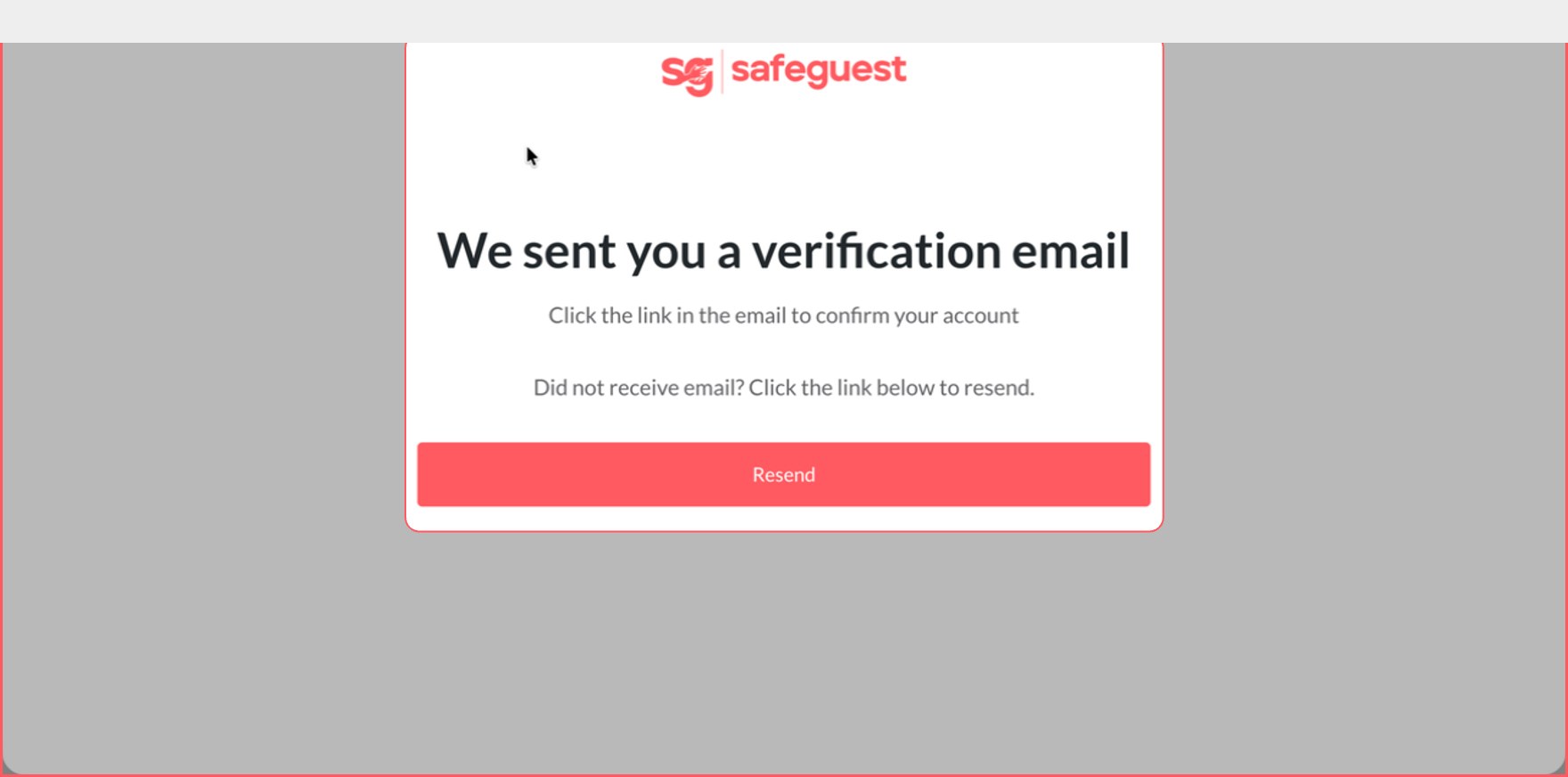
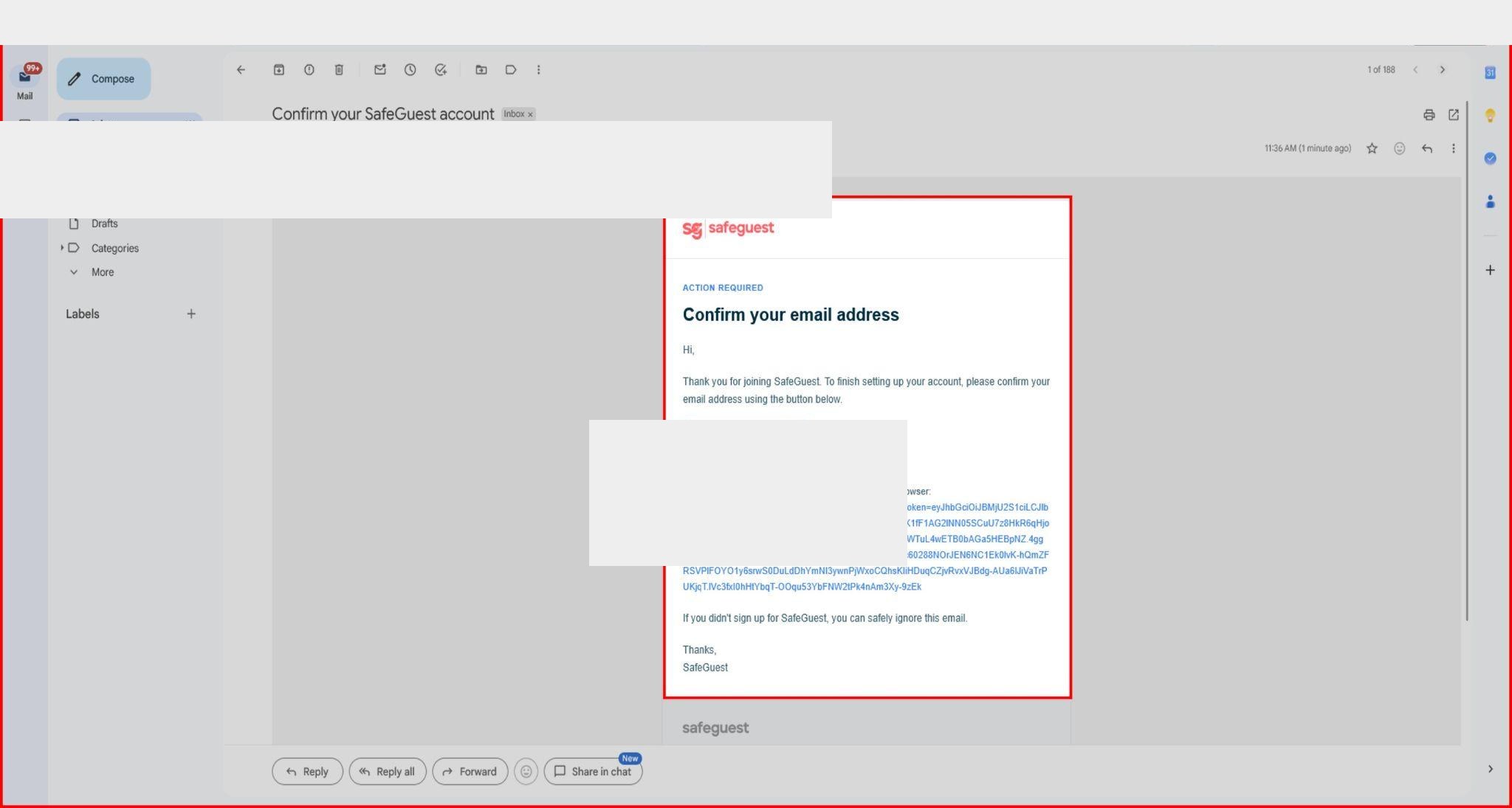
- A verification email will be sent to the registered email address.
- Open the verification email and click Confirm Email.
- Click Continue on the confirmation page.
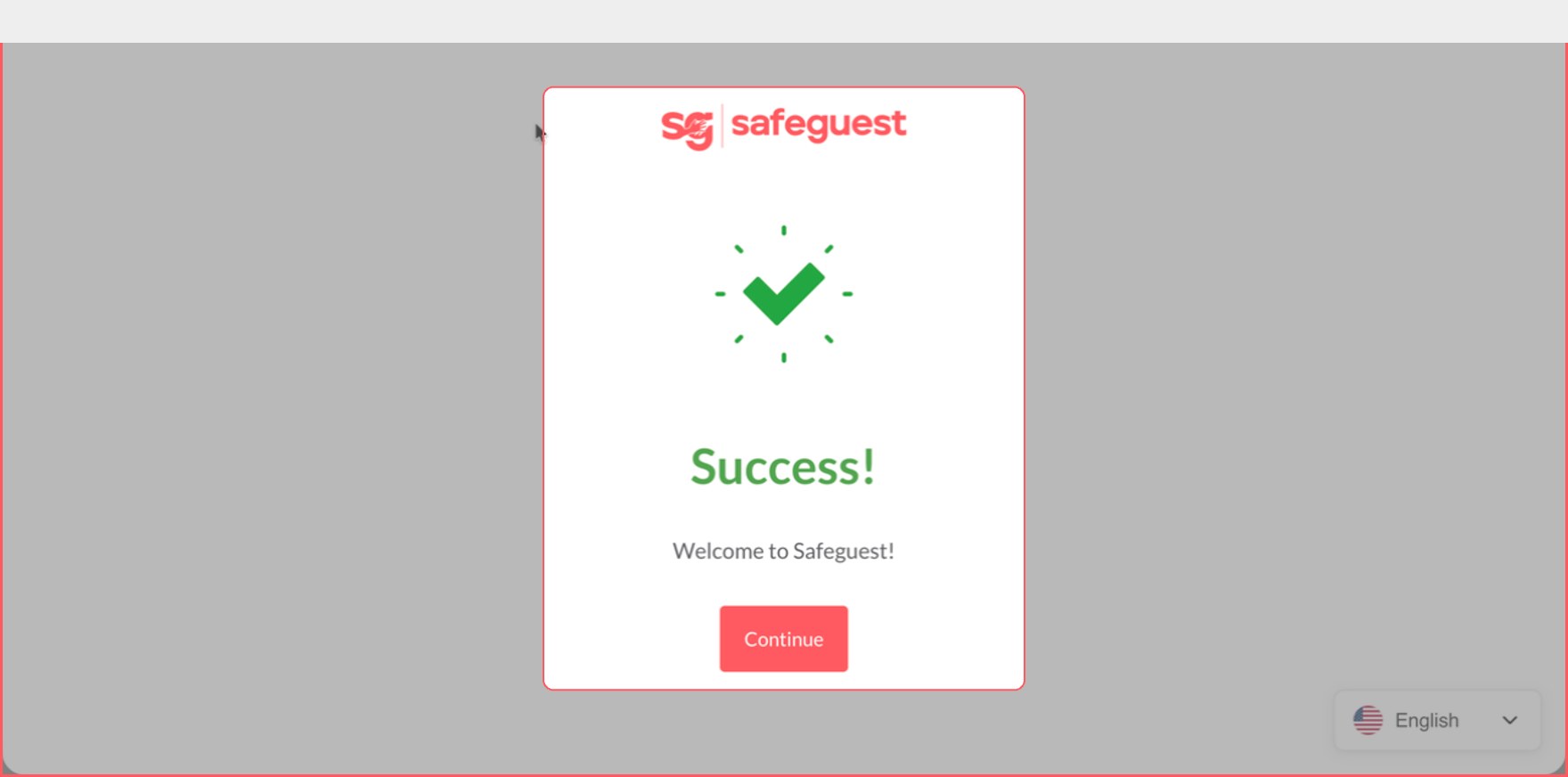
Step 6: Select Track During Onboarding
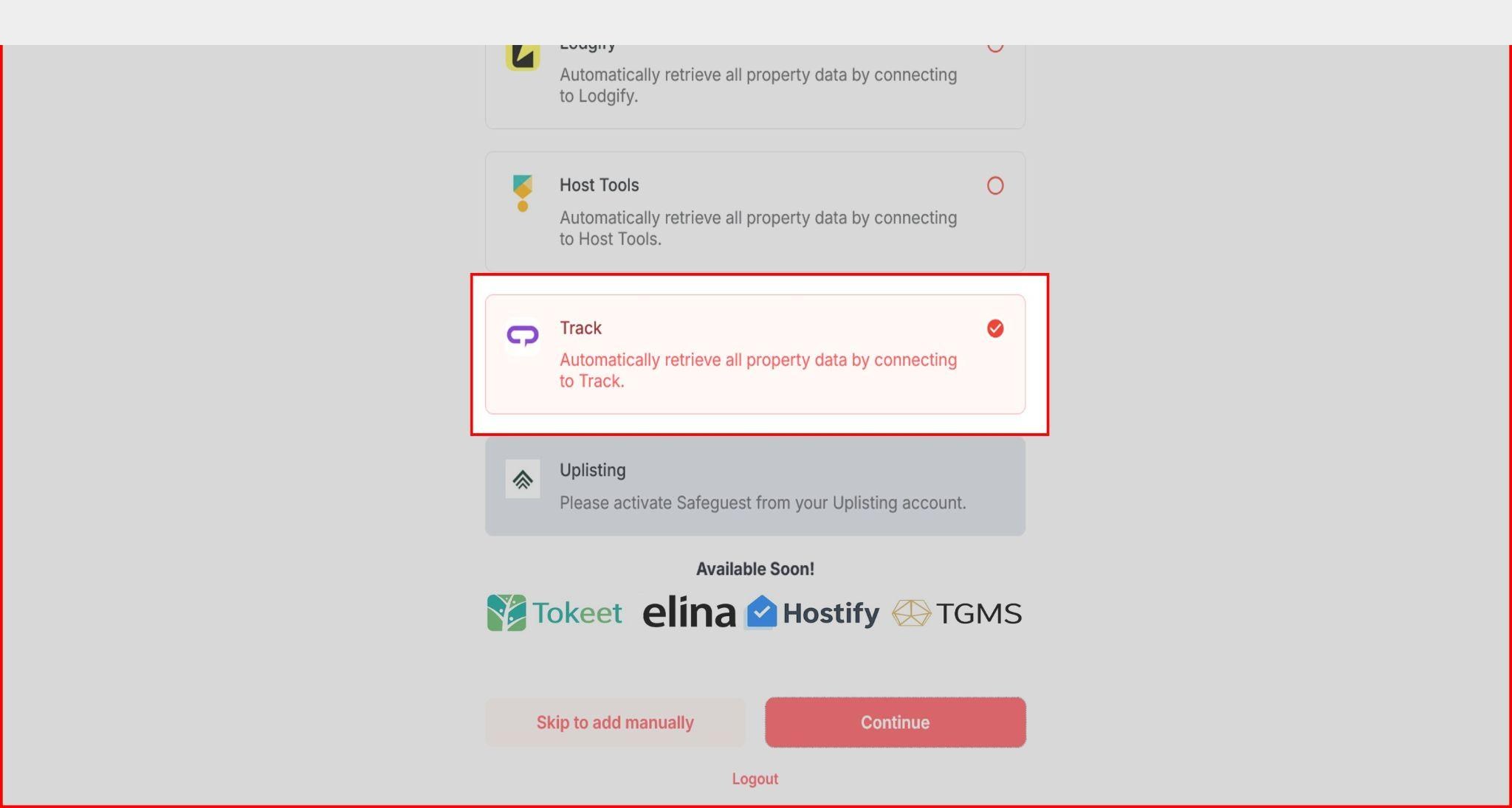
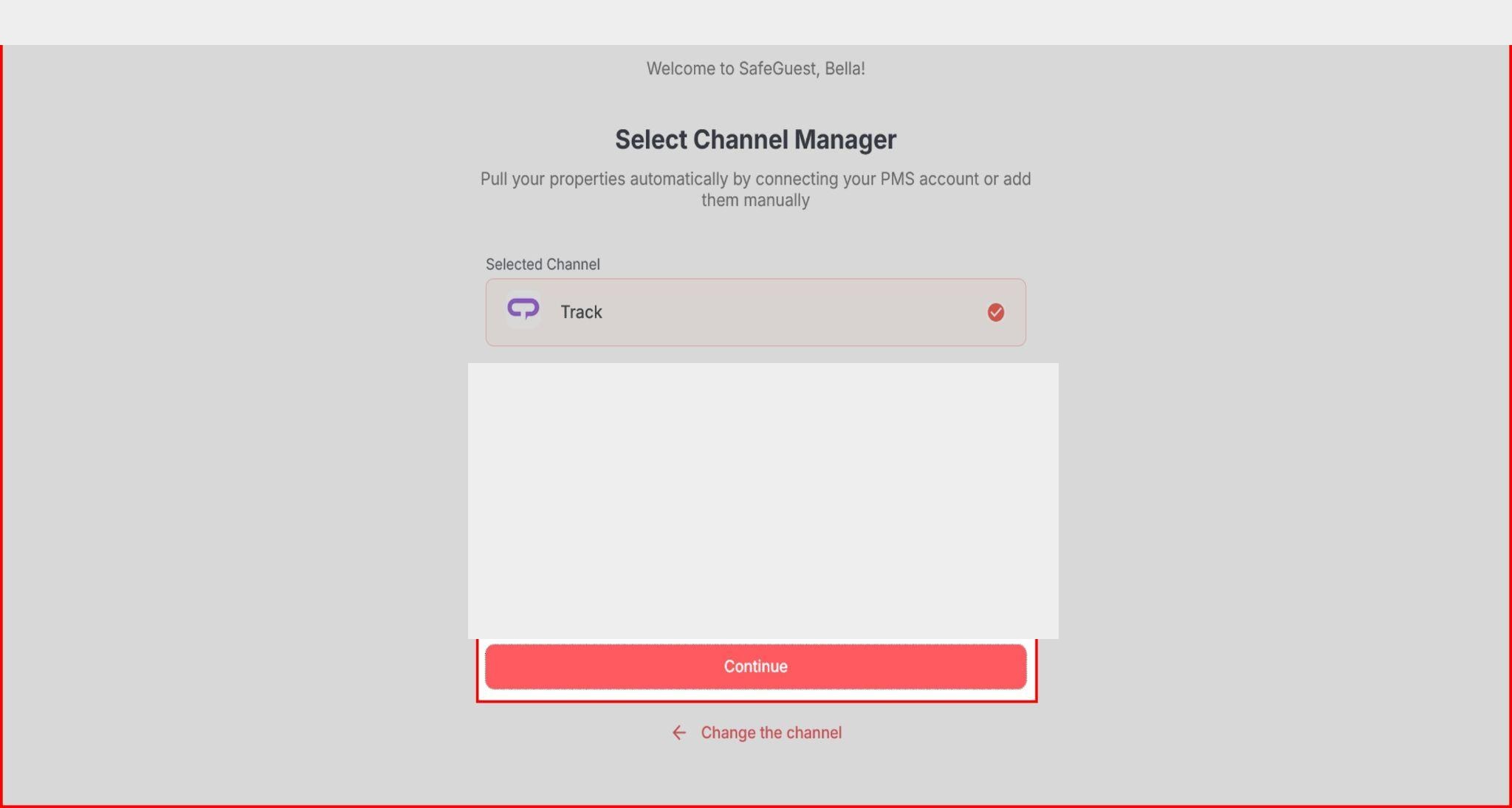
- On the SafeGuest onboarding screen, select Track from the list of integrations, and click the Continue button.
- Paste the copied Track Base URL, Integration Key, and Secret into their respective fields, then click Continue.
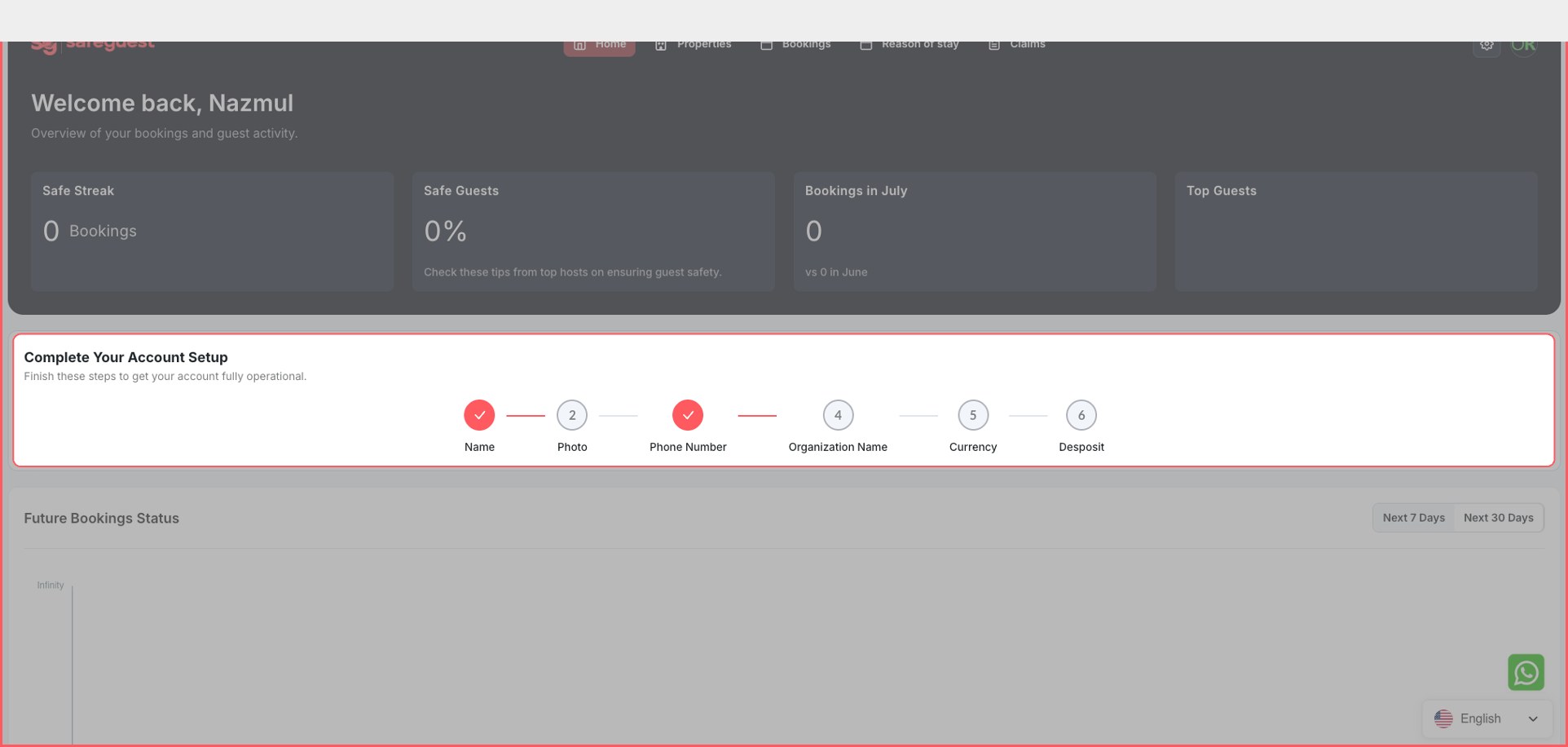
Step 7: Complete the Setup Banner Steps
Finish these steps to get your account fully operational.
- Name
- Photo
- Phone Number
- Organization Name
- Currency
- Deposit
Step 8: Go to your SafeGuest Settings Page
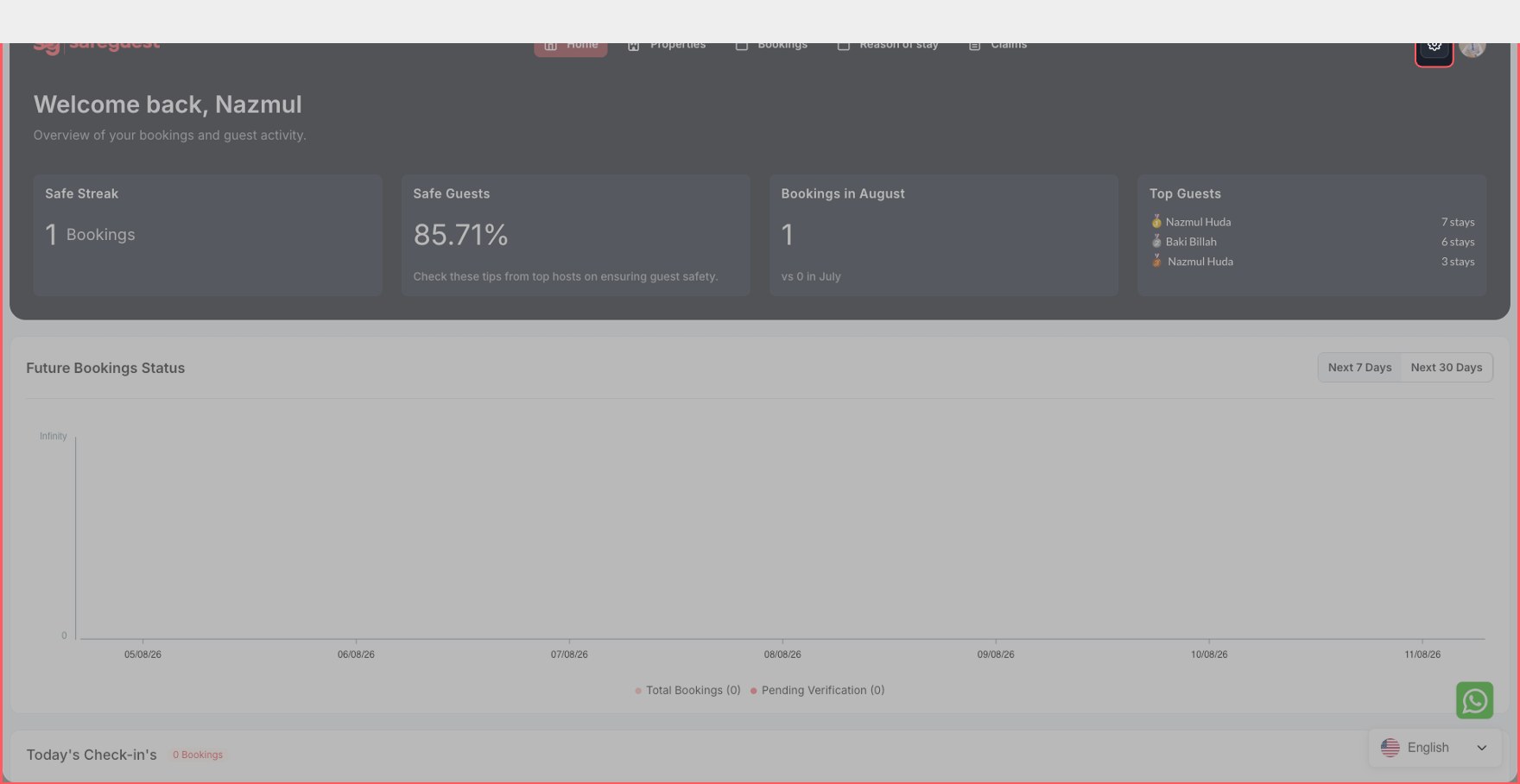
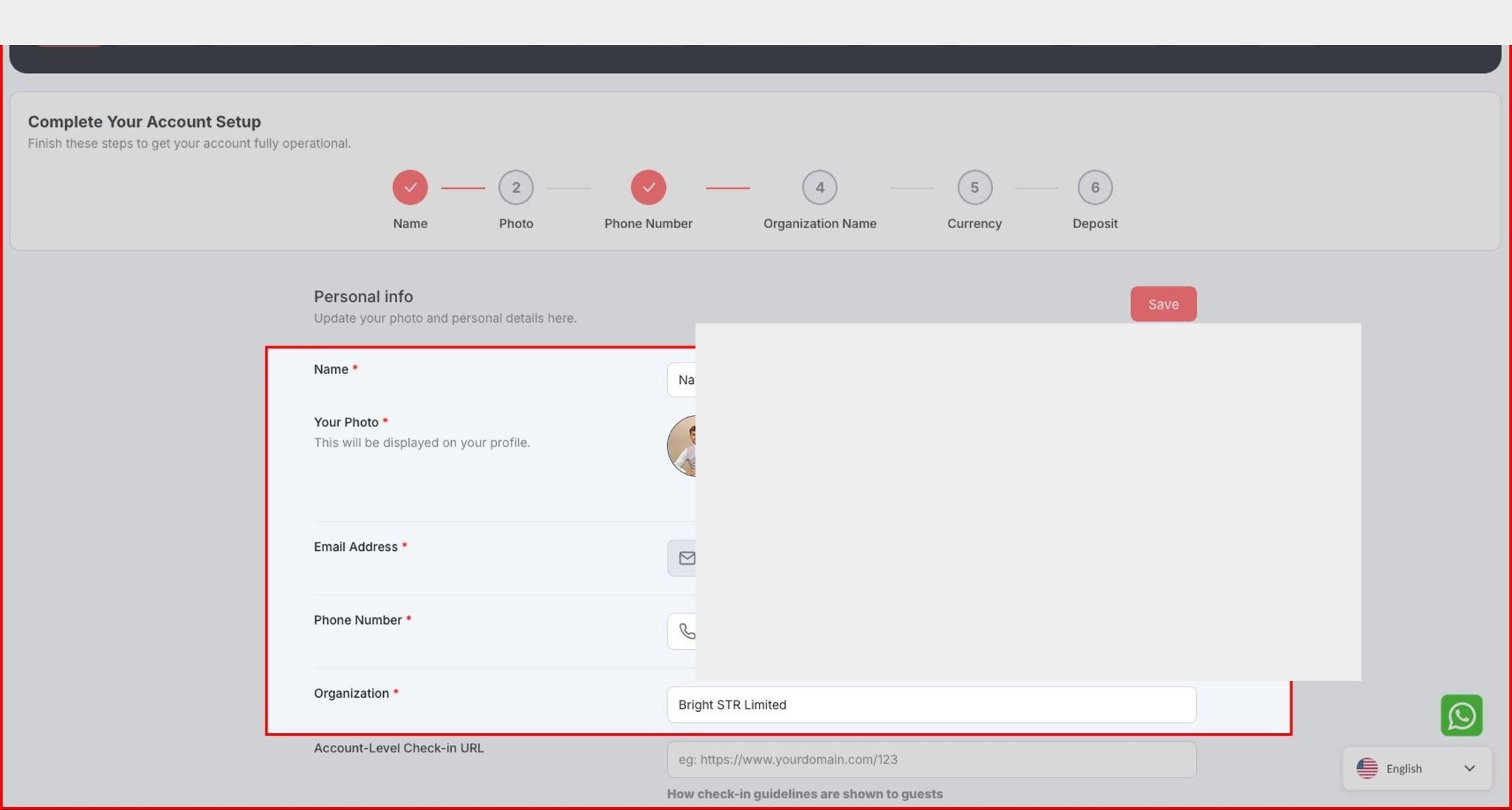
Step 9: Update Profile Details
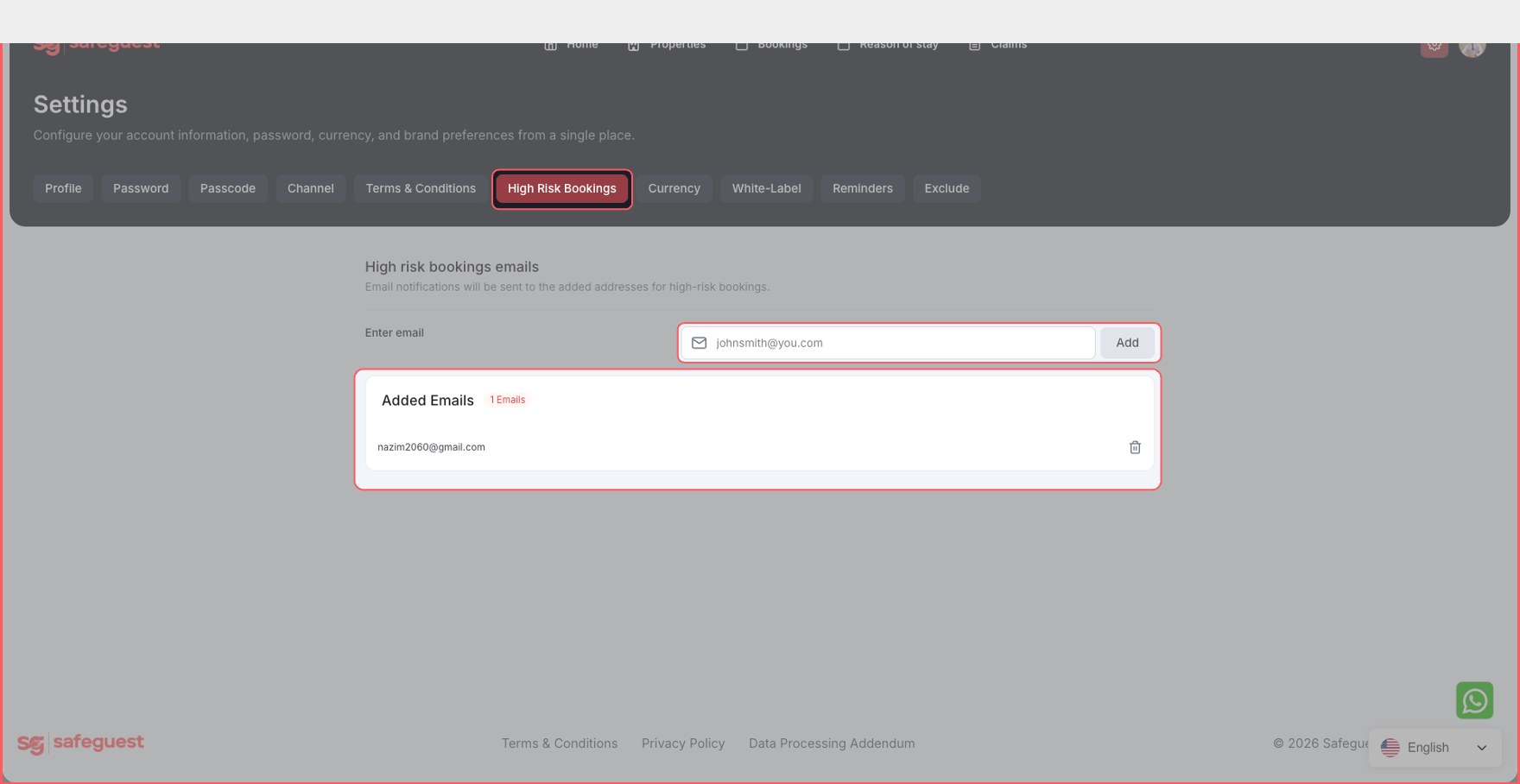
Step 10: Setup High Risk Bookings Details
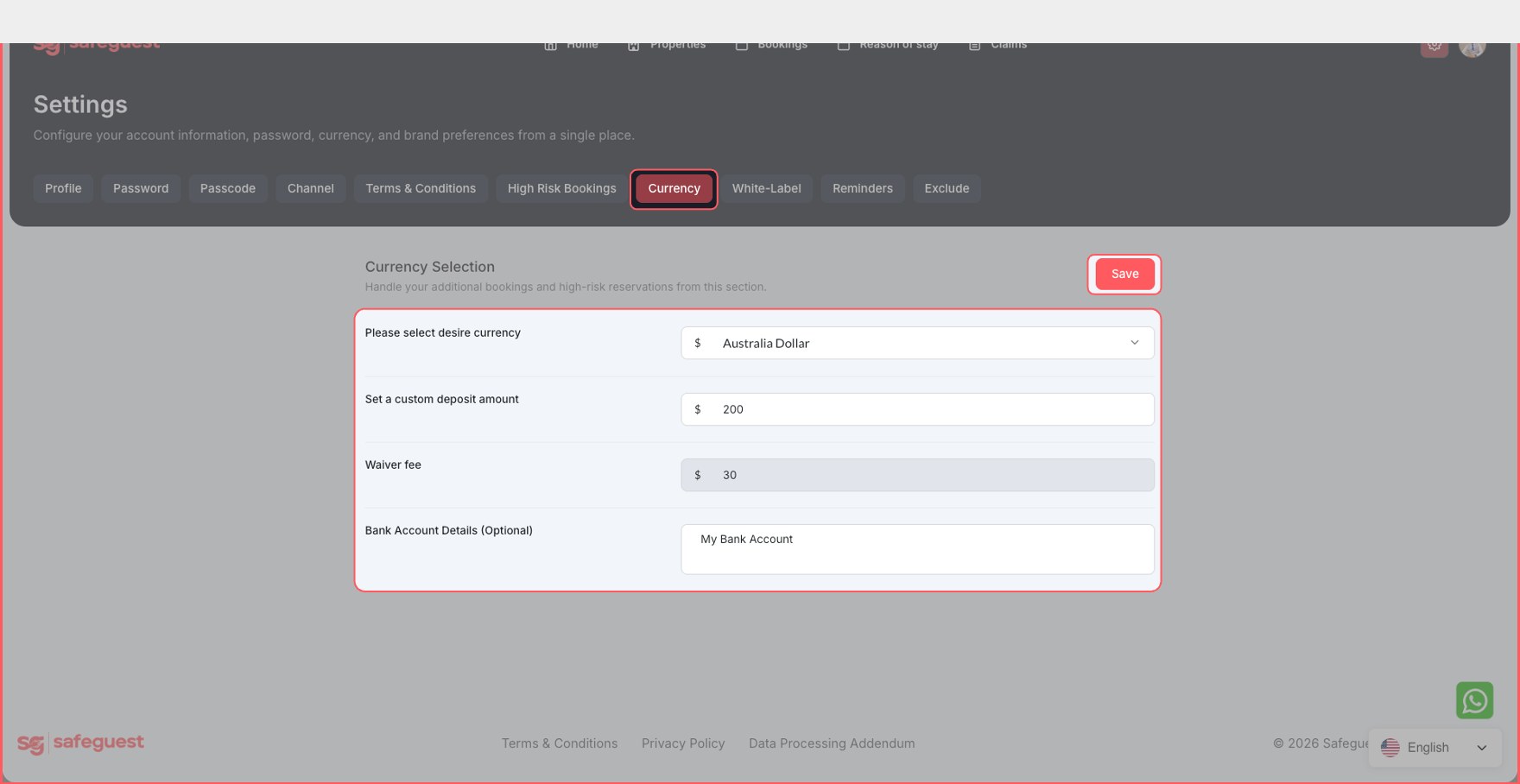
Step 11: Setup Currency and Security Deposit Details
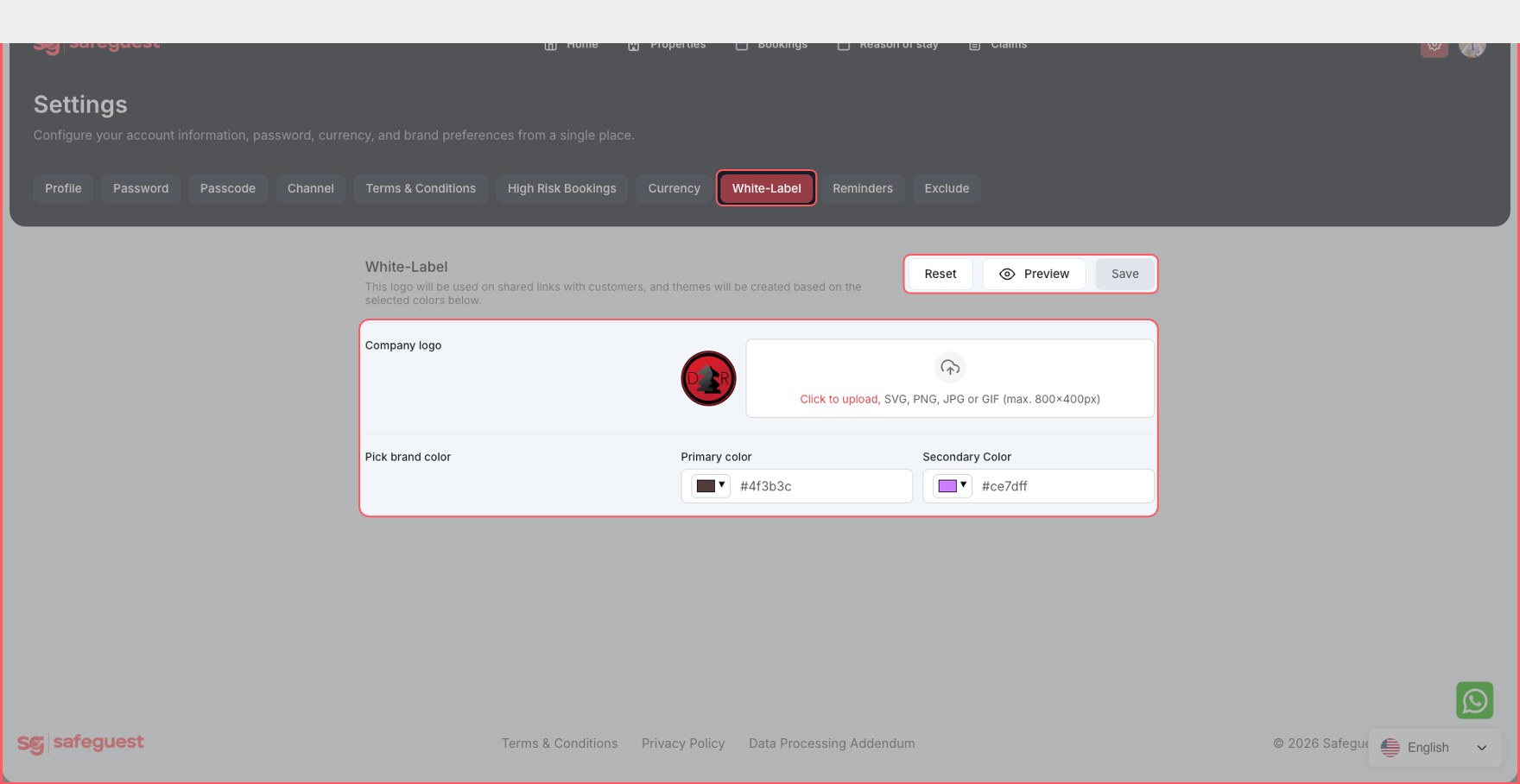
Step 12: Setup White Label Details
- Add your Company Logo and Brand Colors.
Step 13: Exclude SafeGuest Verification URLs
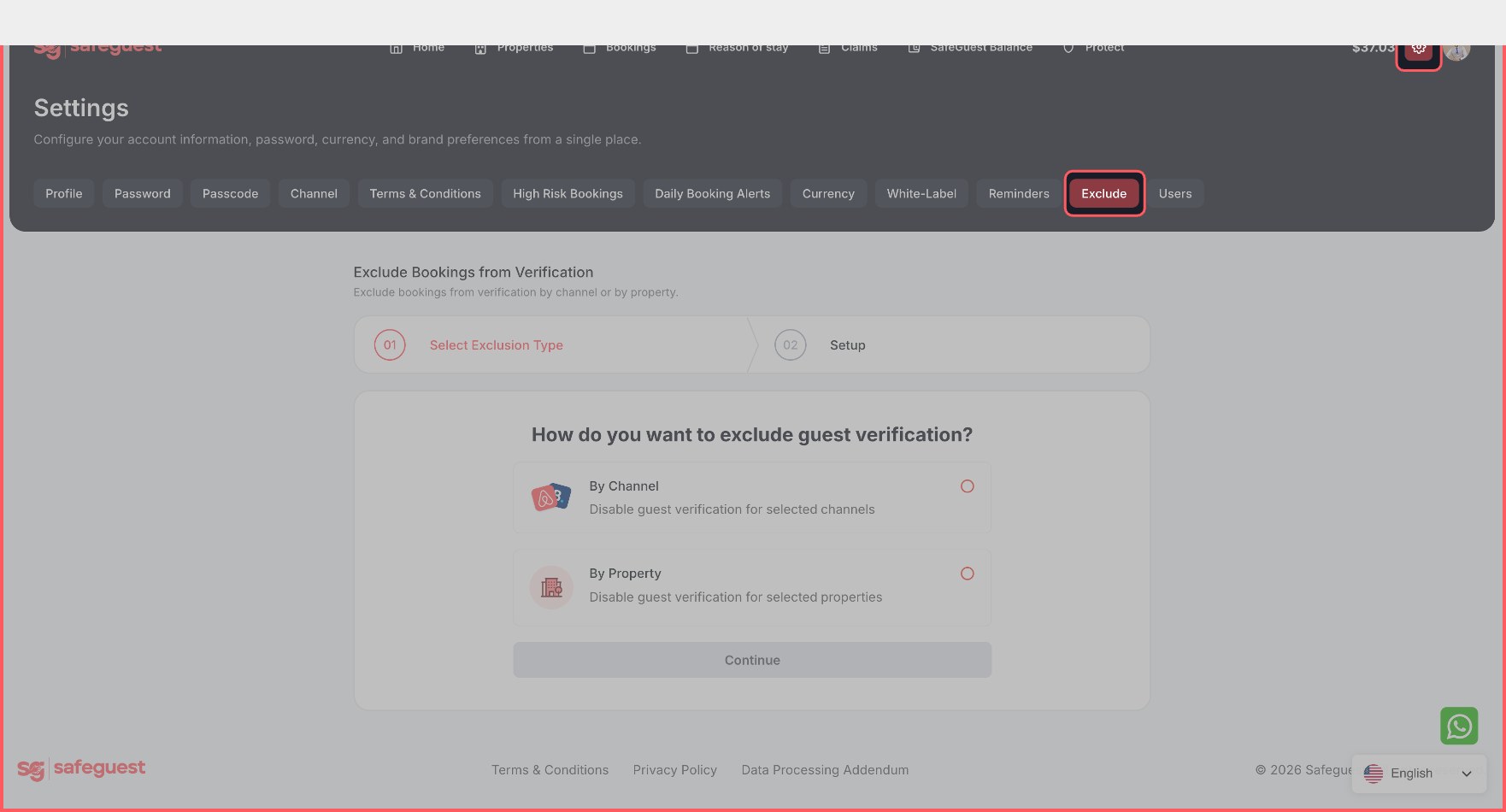
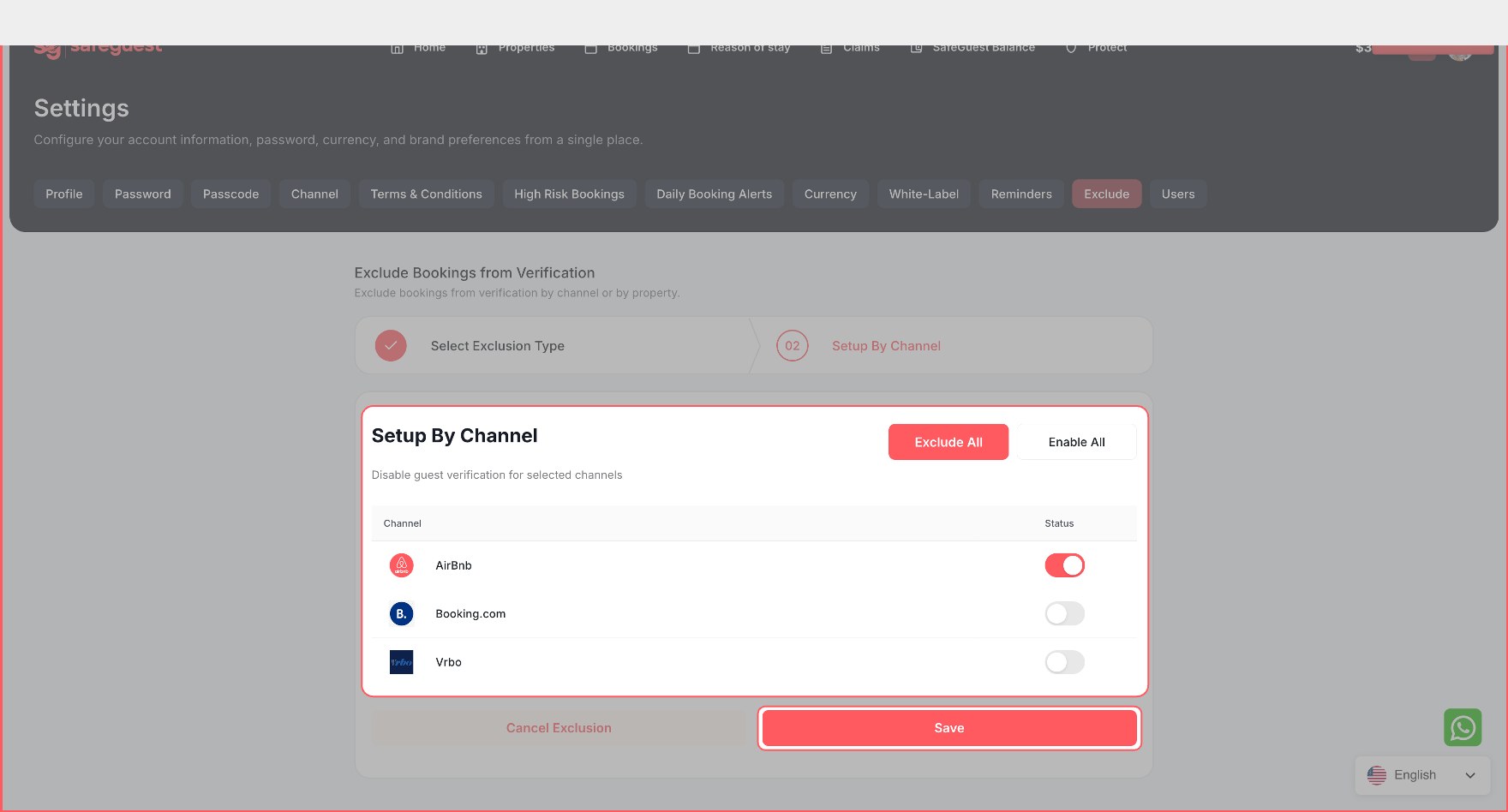
If you don't want to generate SafeGuest verification URLs for bookings from a specific channel or property, use this Exclude option. You can exclude verification either by channel or by property, then select the specific channel or property you want to exclude and save the setting. To do that:
- Click the settings icon, then click the Exclude tab.
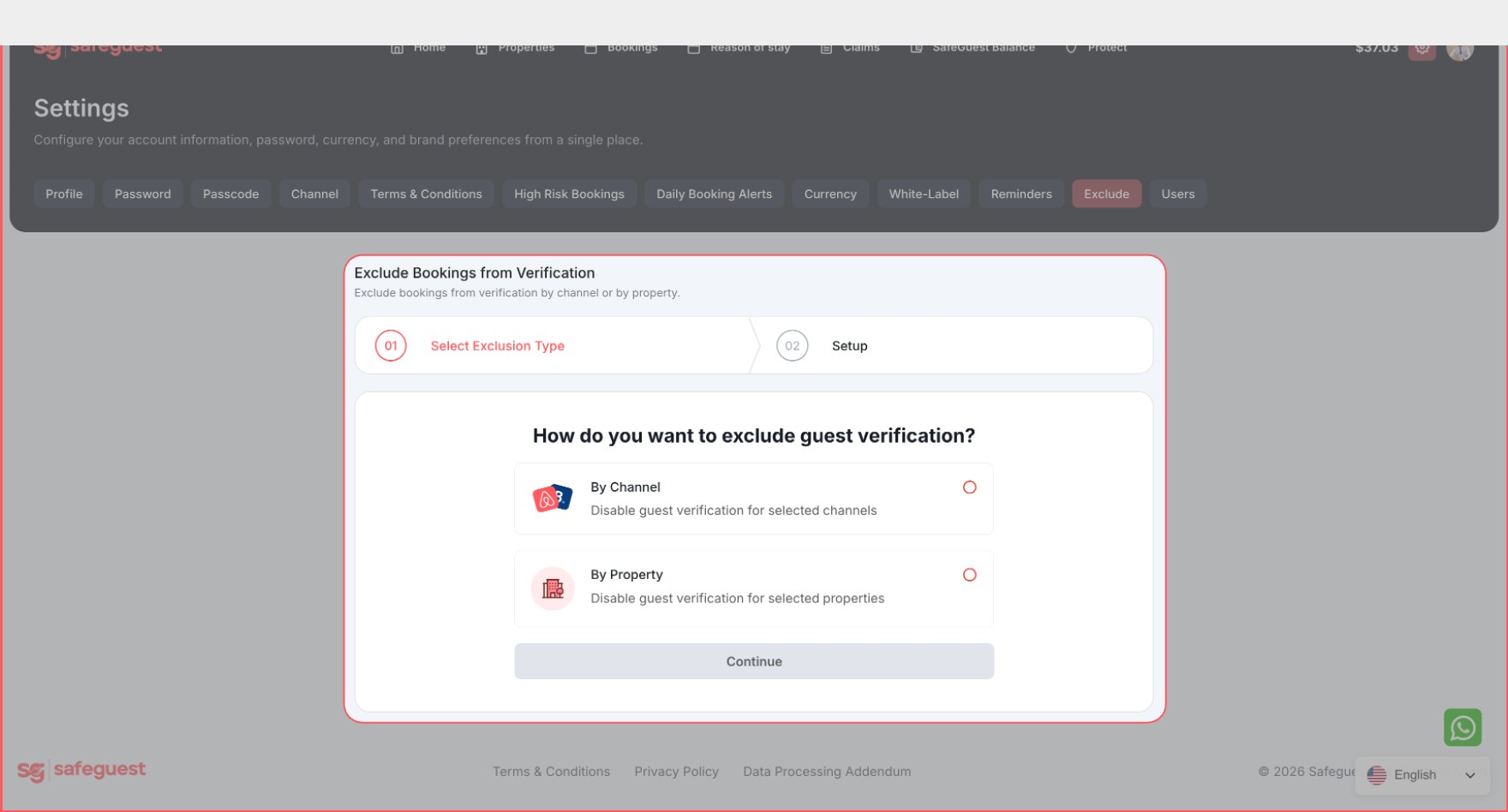
- Under Exclude Bookings from Verification, choose how you want to exclude guest verification: By Channel or By Property.
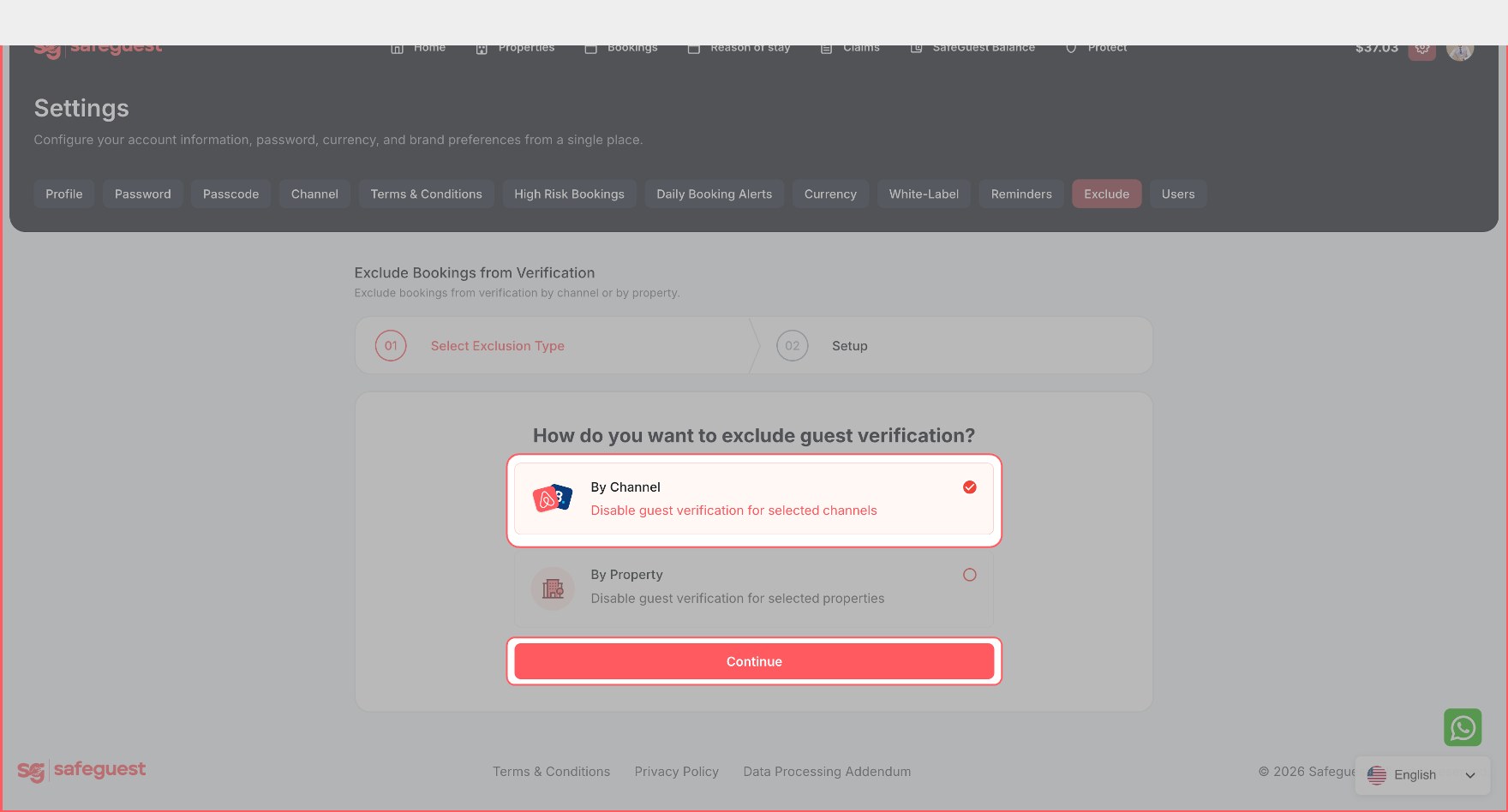
- For the demonstration purpose, let's select By Channel, then click Continue.
- Turn on the toggle for the channel you want to exclude (in this case, we turned on the AirBnB toggle), then click Save.
If you don't want to exclude any channel or property, then you can skip this step.
Step 14: Turn On the Verification Process
Finally, turn on the verification process so guests can receive their SafeGuest verification URLs and complete their verification before check-in.
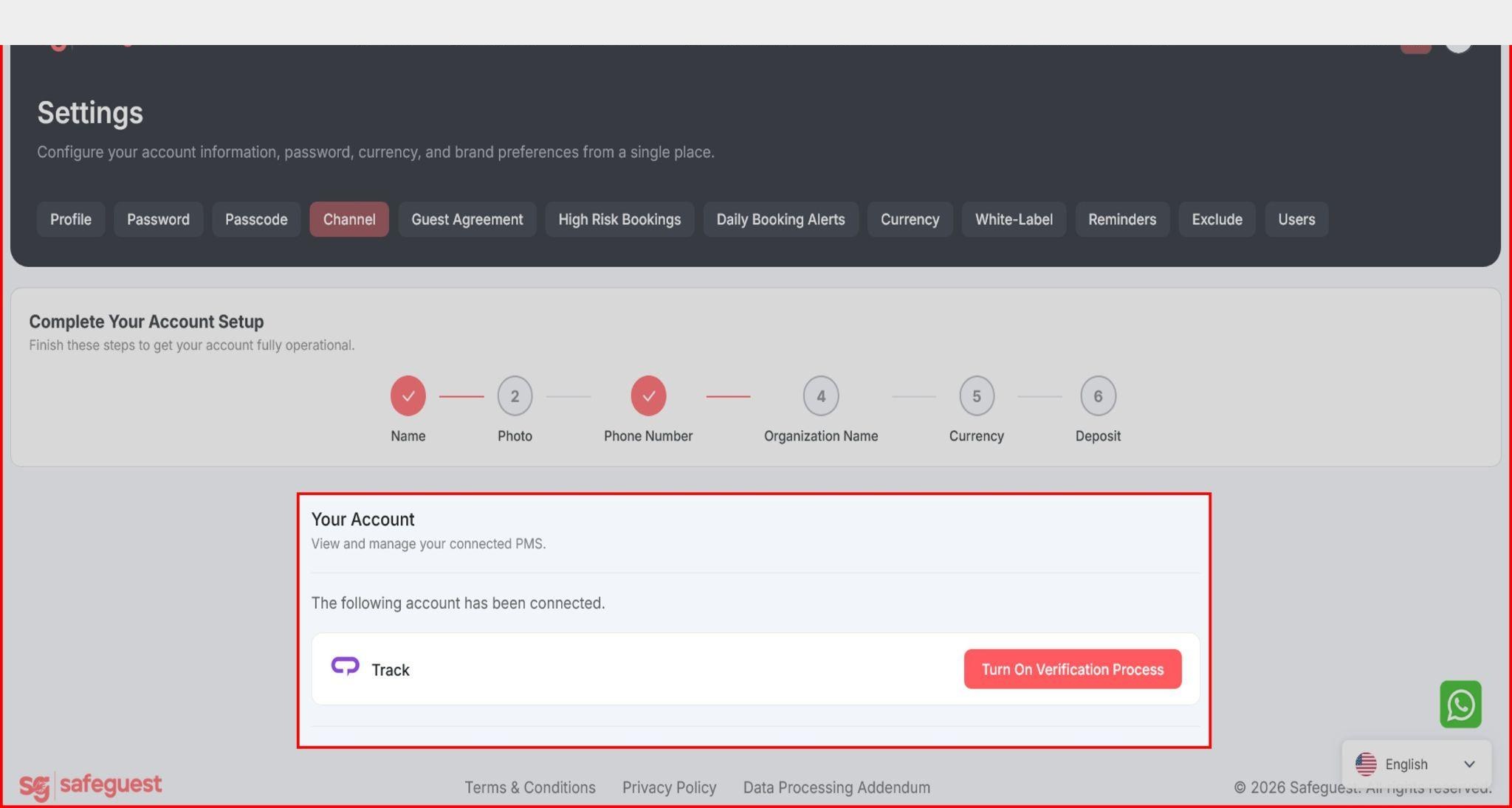
- Go to the Channel tab and review the connected Track account. The Verification Process shows as OFF.
- Click Turn On Verification Process.
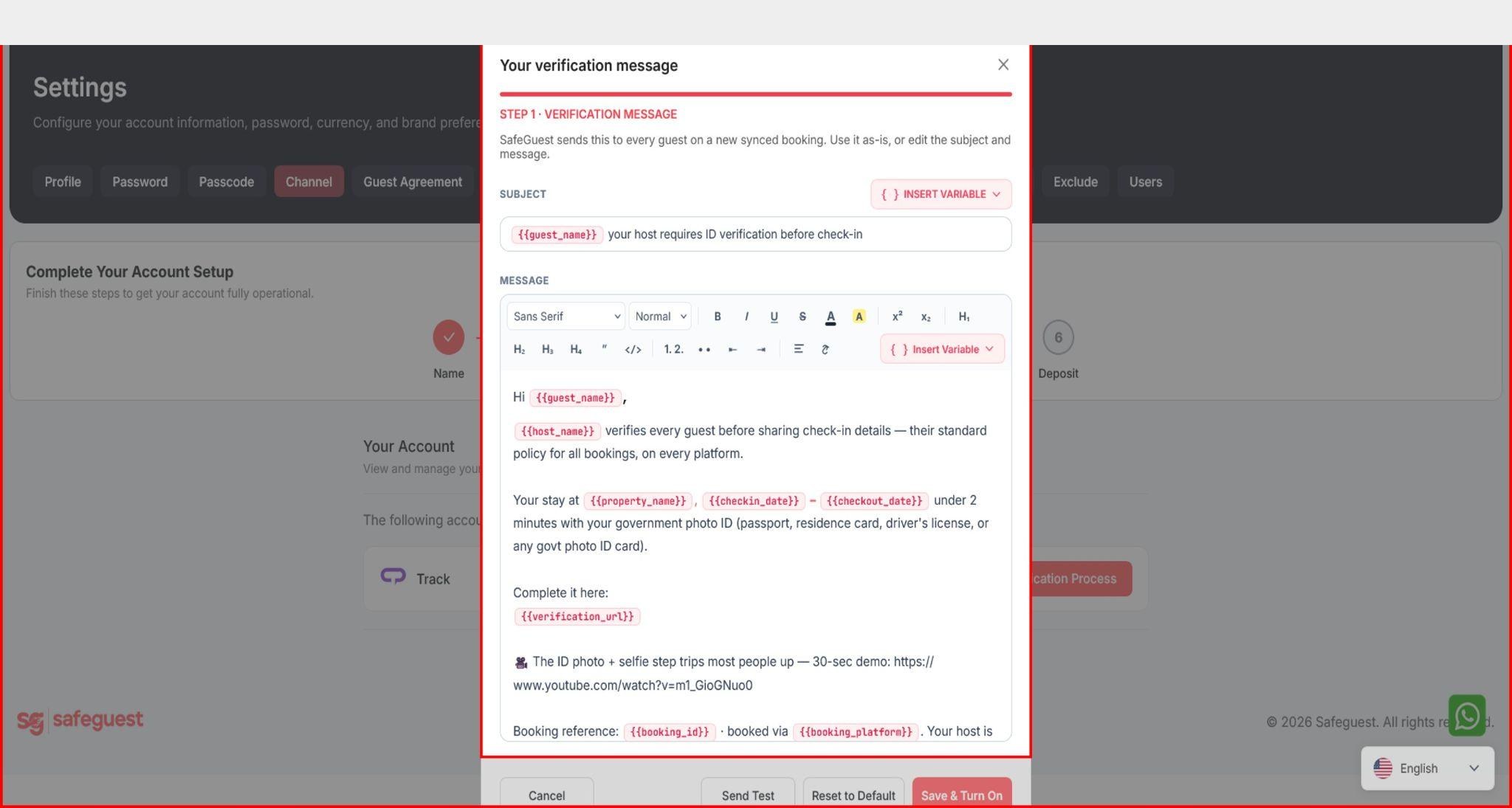
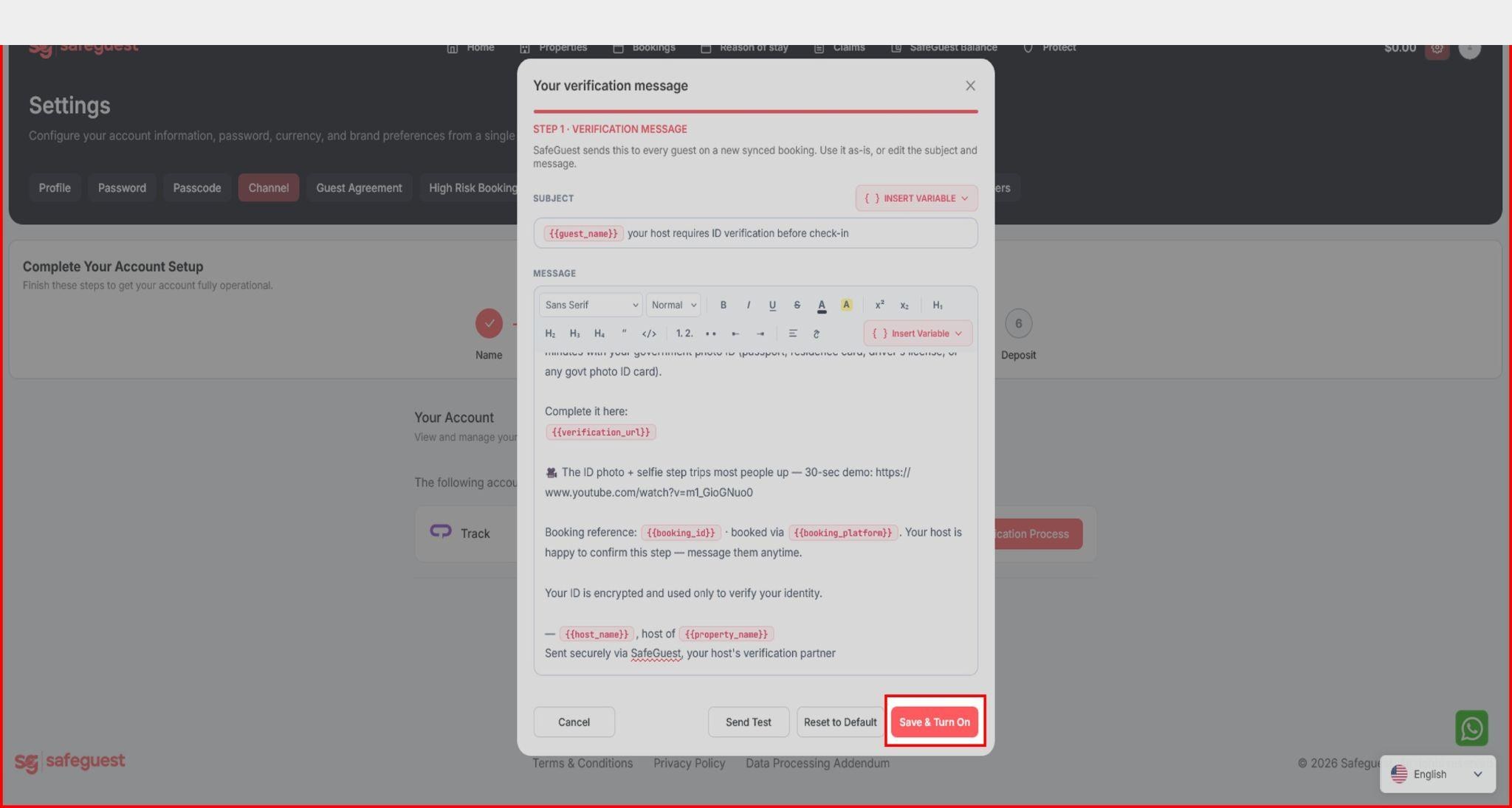
- A pop-up will appear showing the message which the guests will receive.
- You can make changes to the subject and message body as well.
- You can also add variables by clicking the Insert Variable button.
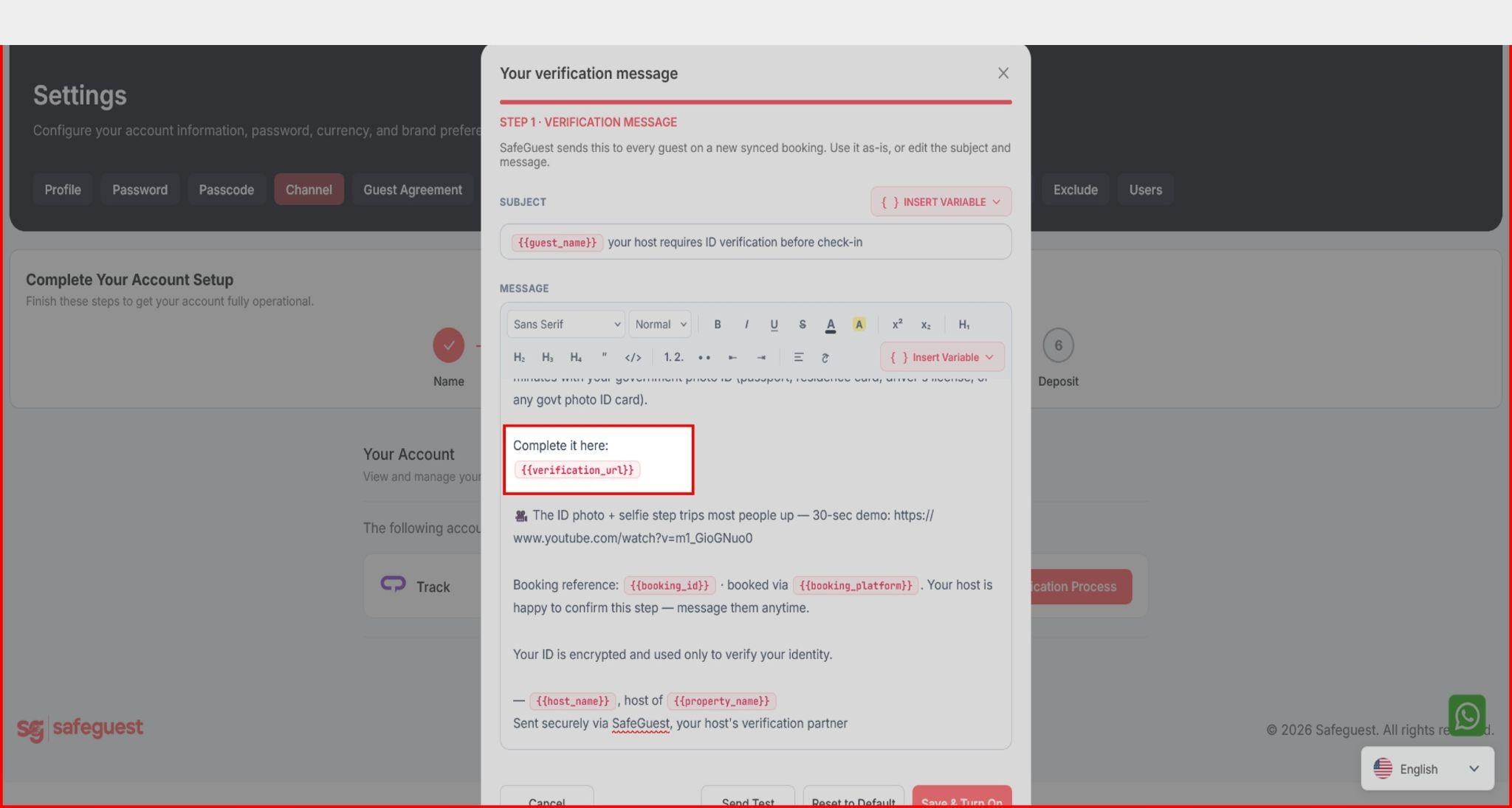
- Please note that the message body must contain the
{{verification_url}}variable. - Once necessary changes are made, click the Continue button.
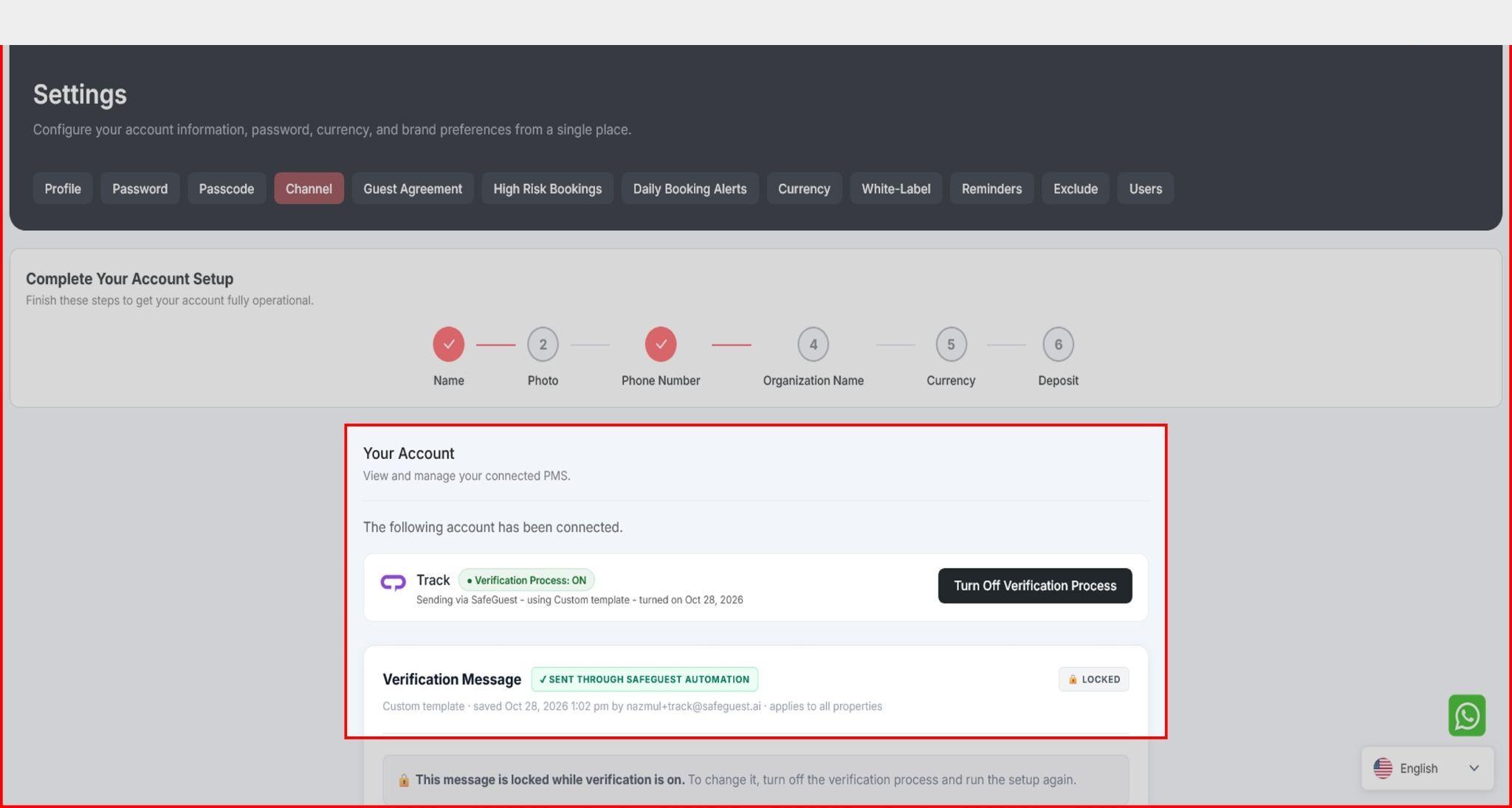
- A pop-up will appear confirming that SafeGuest will automatically send verification URLs, so no Track automation is required. Click Save & Turn On to proceed.
- After that the status will update to Verification Process: ON.
Step 15: Verify Your Properties in SafeGuest
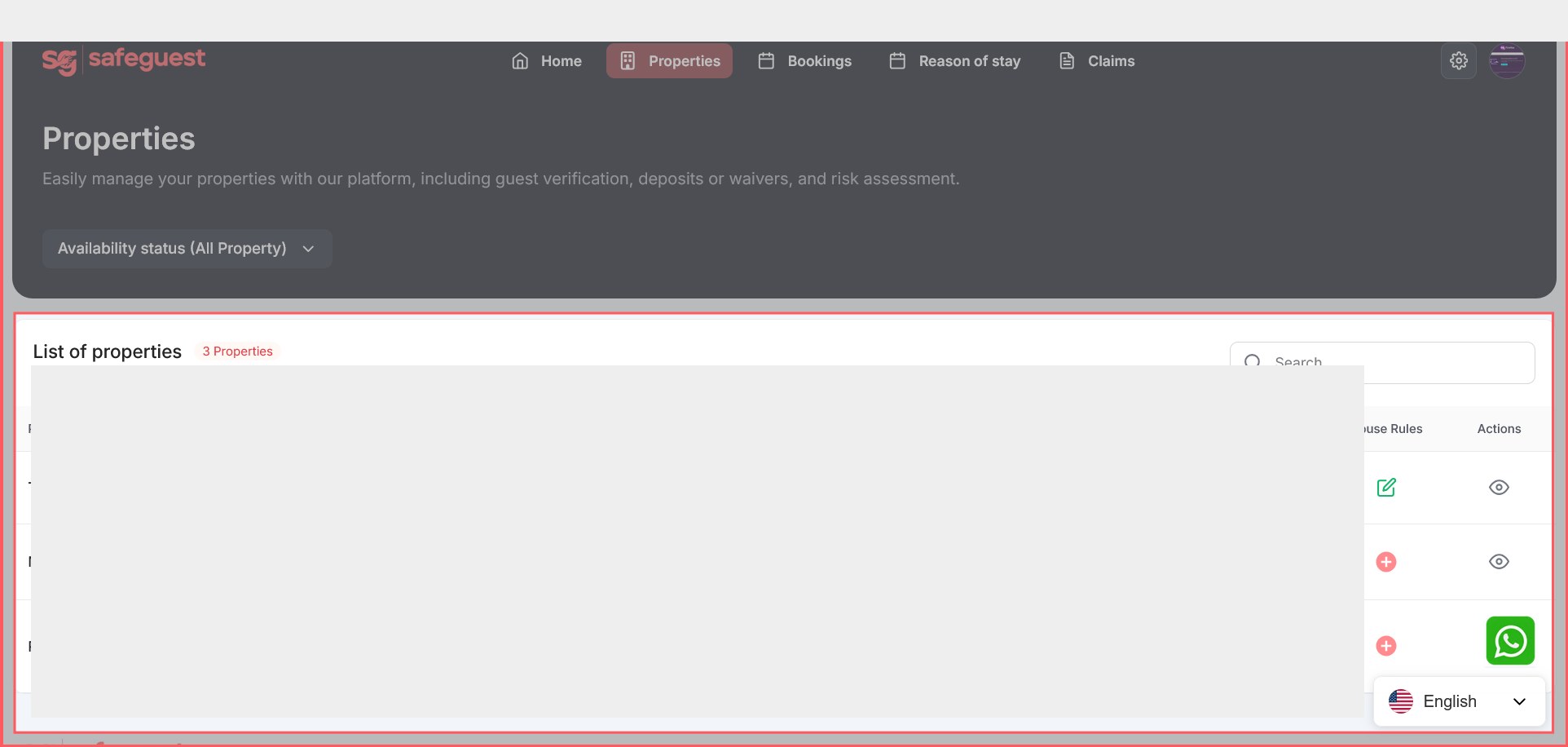
- Go back to the browser tab with your SafeGuest dashboard.
- Click on the Properties page from the main menu.
- Wait if needed: synchronization usually takes less than 1 minute to complete.
Step 16: Verify Your Bookings
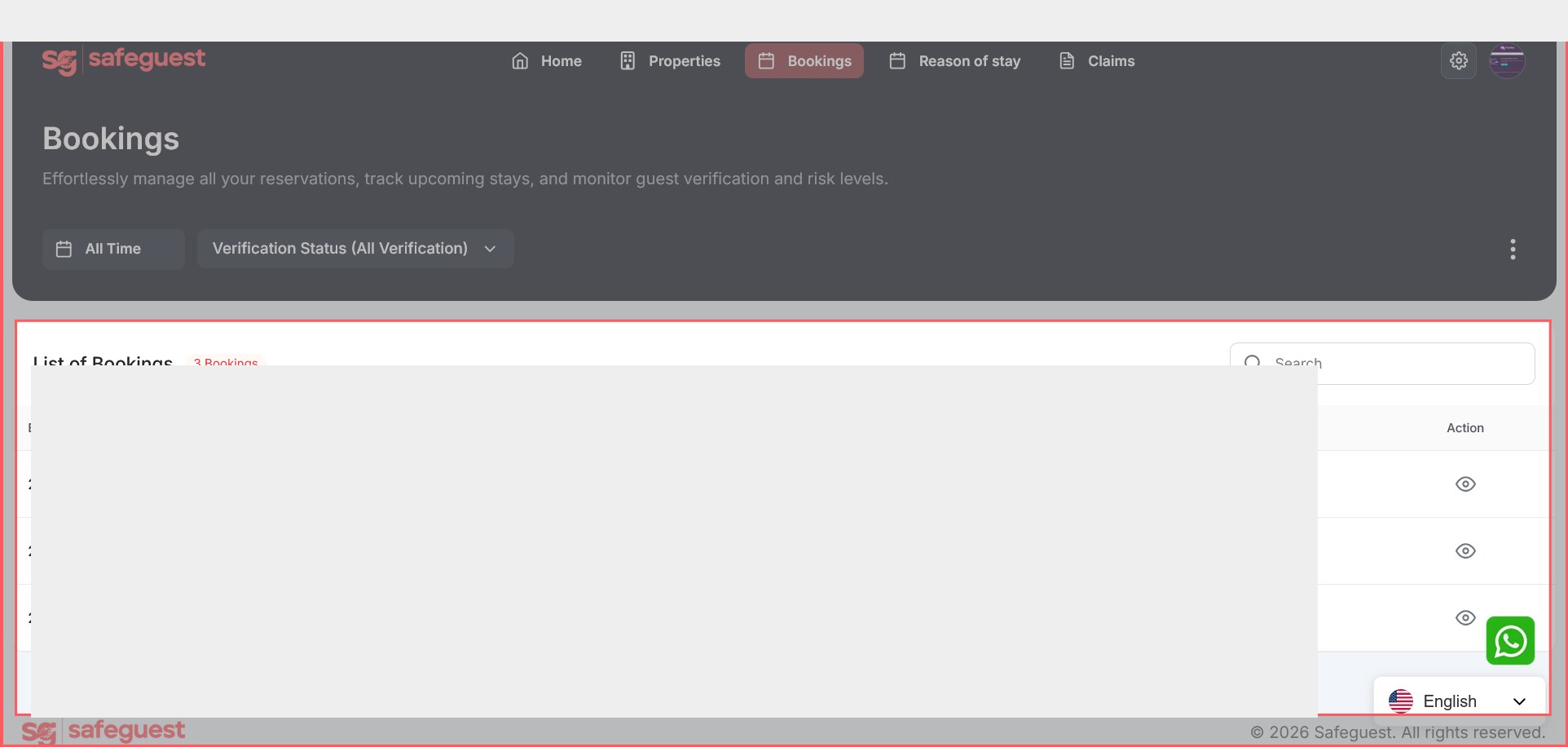
- Open the Bookings page: Click on Bookings in the navigation menu.
- Review upcoming bookings.
- View booking details: Click the Eye icon next to a booking to open and review details.
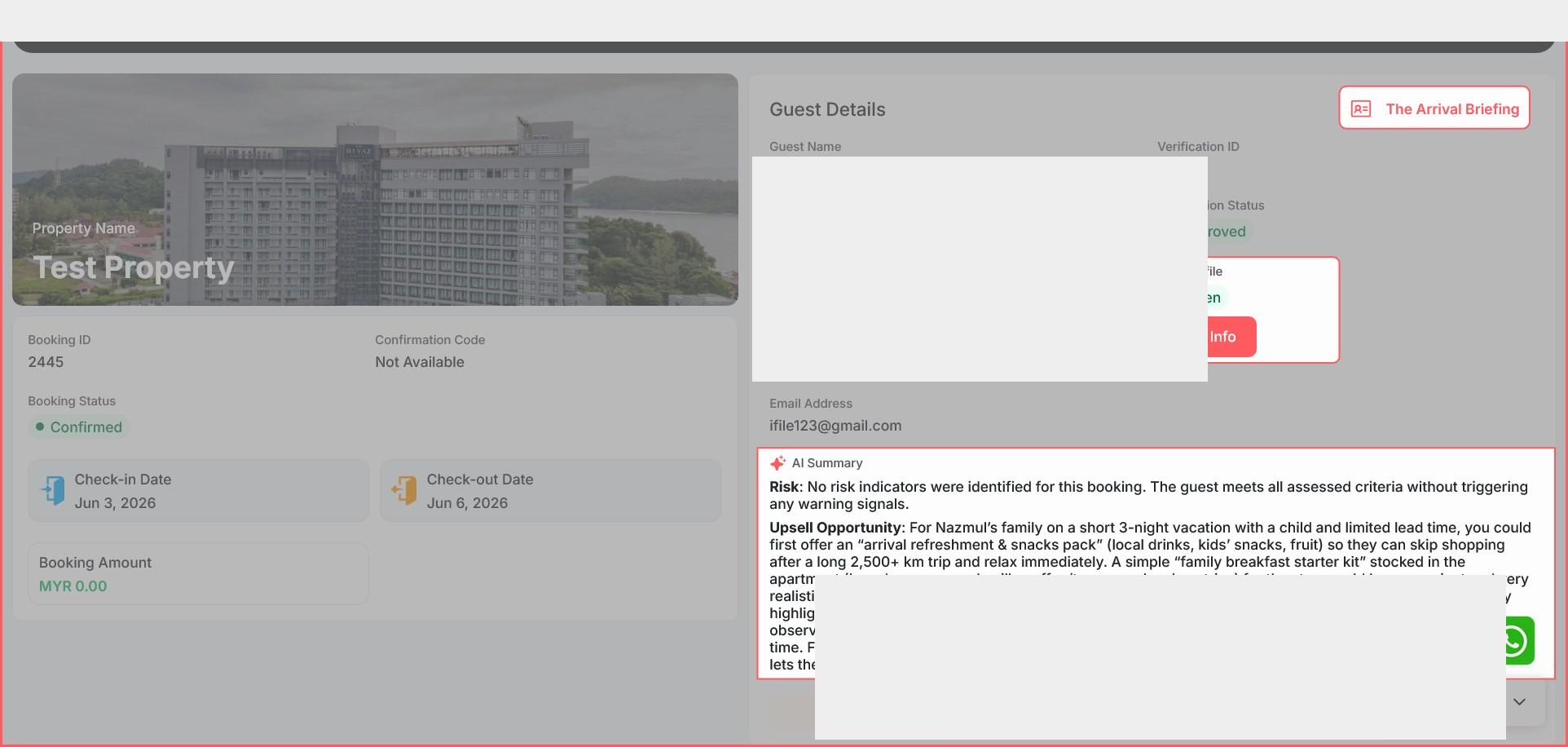
- Wait for the guest to complete verification: Once the guest has successfully completed the SafeGuest verification process, additional information will become available within the booking details.
- Review the guest's Arrival Briefing to access relevant booking and stay information.
- Review the guest's Risk Score to better assess potential booking risks.
- Read the AI-generated Summary for an overview of the guest verification results.
- View booking details: Click the Eye icon next to a booking to open and review details.
Know before they knock.
Safeguest Prevent verifies every guest before arrival. Free for hosts.